8 Best External SSDs for iPhone (October 2026)
The best external SSDs for iPhone include the Samsung T7 Shield Portable SSD 1TB for rugged phone shoots, the Samsung T7 Portable SSD 1TB for mixed device use, and the SanDisk Creator Phone SSD 1TB for MagSafe filming.
On this page (7 sections)
- Best External SSDs for iPhone
- Which external SSDs work best with iPhone?
- How do you choose the best external SSD for iPhone?
- How do you set up an external SSD with iPhone?
- How should you care for an iPhone SSD?
- What mistakes should you avoid with an iPhone SSD?
- Which external SSD should you pick for iPhone?
Best External SSDs for iPhone
The Samsung T7 Shield Portable SSD 1TB is the best external SSD for most iPhone users who want a rugged drive for video capture and file storage. Choose the SanDisk Creator Phone SSD for magnetic attachment, or the Lexar ES5 if 2TB and magnetic mounting matter most.
An iPhone SSD can help move large videos off your phone, keep a working copy of photos, or record supported footage directly to external storage. Those jobs have different requirements, so check the iPhone model, connector, cable, recording app and video format before choosing.
For a broader look at portable storage, compare these picks with our best external SSDs for everyday storage. If you're organizing a photo backup plan, our guide to the best way to back up photos explains why one drive should not be your only copy.
Our picks at a glance
-
1

-
2
-
3

- 4
 Check it
SanDisk Extreme Portable SSD 1TB (2000MB/s)
Best for large transfers - 5
 Check it
Lexar Go Portable SSD with Hub 1TB
Best for accessory setups - 6
 Best for iPhone 17 ownersCheck it
 - 7
 Best for magnetic 2TBCheck it
 - 8
 Best for cable flexibilityCheck it
Which external SSDs work best with iPhone?
The best external SSD for iPhone depends on whether you need direct video recording, magnetic mounting, extra ports or everyday file storage. We compared stated phone support, connection details, capacity and features that matter when using a drive away from a desk.
| Product | Best for | Capacity | Connection | Recording | Our score |
|---|---|---|---|---|---|
| Samsung T7 Shield Portable SSD 1TB | rugged phone shoots | 1TB | USB 3.2 Gen 2 | Supports iPhone 15 ProRes 4K at 60fps | 9.1 |
| Samsung T7 Portable SSD 1TB | mixed device use | 1TB | USB 3.2 Gen 2 | Supports iPhone 15 ProRes 4K at 60fps | 9.0 |
| SanDisk Creator Phone SSD 1TB | MagSafe filming | 1TB | USB-C | 8.4 | |
| SanDisk Extreme Portable SSD 1TB (2000MB/s) | large transfers | 1TB | USB-C | 8.3 | |
| Lexar Go Portable SSD with Hub 1TB | accessory setups | 1TB | USB-C hub | Supports ProRes 4K at 60fps on specified iPhones | 8.1 |
| Lexar ES3 Portable SSD 1TB | iPhone 17 owners | 1TB | USB | 8.0 | |
| Lexar ES5 Magnetic SSD 2TB | magnetic 2TB | 2TB | USB-C | 7.9 | |
| SSK Portable SSD 1TB | cable flexibility | 1TB | USB-C and USB-A cables | Supports iPhone 4K60Hz ProRes HDR capture | 7.6 |
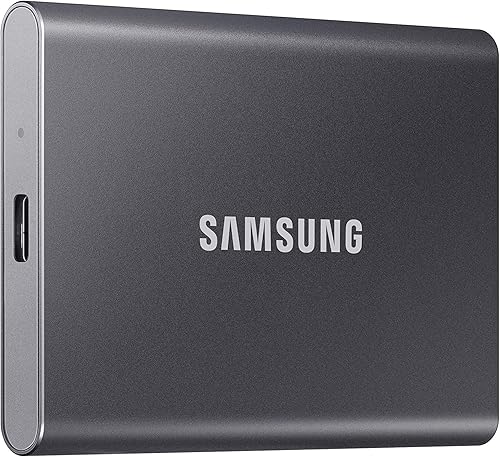
Samsung T7 Shield Portable SSD 1TB: Best for rugged phone shoots
- 1TB capacity
- USB 3.2 Gen 2
- Up to 1,050 MB/s read and 1,000 MB/s write
- IP65 water and dust resistance
- Drop resistance up to 9.8 ft
A rugged 1TB option with USB 3.2 Gen 2 and support for iPhone 15 ProRes 4K at 60fps. Samsung recommends the included SSD cable.
Pros
- IP65 water and dust resistance
- Drop resistance up to 9.8 ft
- Samsung Magician can monitor drive health
Cons
- Confirm your iPhone model and cable setup
- Maximum speeds depend on host and cable support
The T7 Shield is the top pick for a phone workflow that may take you outdoors. Its IP65 water and dust resistance and drop resistance up to 9.8 ft add protection when you carry the drive with camera gear, though those ratings don't make it suitable for careless handling around water or grit.
Samsung says it supports iPhone 15 ProRes 4K at 60fps. The drive has 1TB of storage, and Samsung recommends the included SSD cable for the iPhone setup.
Choose it if you want one drive for compatible iPhone recording and transfers to a computer. Skip it if you need a magnetic mount or your iPhone and recording app don't support the stated ProRes workflow.
Samsung T7 Portable SSD 1TB: Best for mixed device use
- 1TB capacity
- USB 3.2 Gen 2
- Up to 1,050 MB/s read and 1,000 MB/s write
- Shock resistance and fall protection up to 6 ft
- Supports iPhone 15 ProRes 4K at 60fps
The T7 has a compact aluminum unibody and supports ProRes recording on iPhone 15. It suits general use with phones and computers.
Pros
- Compact aluminum unibody
- Shock resistant with fall protection up to 6 ft
- USB Type-C-to-C and Type-C-to-A cables included
Cons
- No stated water or dust rating
- Maximum speed depends on the host and cable
The Samsung T7 is a good fit if the same SSD will move between an iPhone, computer and other devices. It has a compact aluminum unibody, and Samsung specifies shock resistance and fall protection up to 6 ft.
Samsung states read and write speeds up to 1,050/1,000 MB/s when the host and cable support USB 3.2 Gen 2. It supports iPhone 15 ProRes 4K at 60fps, and USB-C-to-C and USB-C-to-A cables are included.
This is the simpler choice for someone who wants a general-purpose drive rather than a phone-mounted setup. Skip it for frequent outdoor shoots where a stated water and dust rating matters, since this model has no such rating.
SanDisk Creator Phone SSD 1TB: Best for MagSafe filming
- 1TB capacity
- MagSafe-compatible magnetic attachment
- Supports Apple ProRes 4K at 60fps on iPhone 15 Pro/Pro Max and iPhone 16 Pro/Pro Max
- Up to 1,000 MB/s read
- IP65 water and dust resistance
Magnetic attachment and the included USB-C cable make this a phone-focused choice for compatible iPhones. SanDisk says it supports ProRes 4K at 60fps on specified iPhone 15 Pro and iPhone 16 Pro models.
Pros
- MagSafe-compatible attachment
- IP65 water and dust resistance
- Up to 3 m drop protection
Cons
- ProRes support is specified for select iPhone models
- Check your phone and recording workflow before buying
The SanDisk Creator Phone SSD suits mobile filming where a magnetic attachment helps keep storage close to the phone. It connects over USB-C and is specified for ProRes 4K at 60fps with iPhone 15 Pro/Pro Max and iPhone 16 Pro/Pro Max.
The drive has 1TB capacity, IP65 water and dust resistance, and up to 3 m drop protection. Its read speed is up to 1,000 MB/s.
Choose it if you have one of the named Pro iPhone models and want the drive to attach magnetically. Skip it if you use another model or simply need an inexpensive-to-carry file drive without a mount; confirm recording support for your exact phone and app.
SanDisk Extreme Portable SSD 1TB (2000MB/s): Best for large transfers
- 1TB capacity
- Up to 2,000 MB/s read
- IP65 water and dust resistance
- Up to 3 m drop protection
- 256-bit AES encryption
This pocket-sized drive has a stated read speed up to 2,000 MB/s and is compatible with smartphones. Actual speeds depend on the phone, interface and file transfer.
Pros
- IP65 water and dust resistance
- Up to 3 m drop protection
- Password protection with 256-bit AES encryption
Cons
- Password protection requires a software download
- Write speed is lower than the stated read speed
The SanDisk Extreme Portable SSD is the speed-focused option for moving large files between compatible devices. It has a stated read speed up to 2,000 MB/s, plus IP65 water and dust resistance, up to 3 m drop protection and 256-bit AES password protection.
SanDisk says password protection requires a software download and is supported on Windows 10+ and macOS v12+. The iPhone connection and the phone's own interface affect actual transfer speed, so the headline rate is not a promise of that performance on a phone.
Choose it if you often transfer video projects and value the encryption feature for supported computers. Skip it if magnetic mounting or direct ProRes compatibility is your main requirement, because those benefits are not specified for this drive.
Lexar Go Portable SSD with Hub 1TB: Best for accessory setups
- 1TB capacity
- Four USB-C hub ports
- Supports ProRes 4K 60fps recording on iPhone 15 Pro/Pro Max or above
- Up to 30W power supply through hub
- IP65 dust and water resistance
The four-port USB-C hub lets you connect the SSD alongside accessories such as microphones, lights and power. It suits a phone filming setup that needs more connections.
Pros
- Four USB-C ports on the hub
- Up to 30W power supply through the hub
- SSD can be used on its own
Cons
- The hub adds parts to carry
- Confirm the iPhone model supports the stated recording workflow
The Lexar GO Portable SSD with Hub is the strongest fit for a phone filming rig with accessories. Its four USB-C ports let you connect the drive alongside items such as a microphone, light or power bank.
Lexar says the drive supports Apple ProRes 4K at 60fps recording directly from iPhone 15 Pro/Pro Max or above. The hub can provide up to 30W of power, and you can use the SSD on its own when you want fewer parts.
Pick it if your filming setup benefits from extra connections and power while creating. Skip it if your only task is copying photos or videos, since the hub adds gear you don't need for basic storage.
Lexar ES3 Portable SSD 1TB: Best for iPhone 17 owners
- 1TB capacity
- USB 3.2 Gen 2
- Up to 1,050 MB/s read and 1,000 MB/s write
- Compatible with iPhone 17 series
- 256-bit AES encryption software
Lexar names the iPhone 17 series as compatible and says iPhone 14 and older models aren't supported. Check compatibility if you have another iPhone generation.
Pros
- USB 3.2 Gen 2 speeds
- Includes a Type-C cable
- 256-bit AES encryption software
Cons
- MagSafe isn't available on this version
- iPhone 14 and older models aren't supported
The Lexar ES3 is a practical file-storage pick for an iPhone 17 series owner who wants a slim USB-C SSD. Lexar says iPhone 14 and older models aren't supported, and this version does not include MagSafe.
It has 1TB capacity, USB 3.2 Gen 2 and stated speeds up to 1,050 MB/s read and 1,000 MB/s write. Lexar also includes DataShield 256-bit AES encryption software.
Choose it if your phone matches the stated compatibility and you want a straightforward cable connection. Skip it if you have an iPhone 15 or 16 and need a confirmed match, or if magnetic attachment is part of your setup.
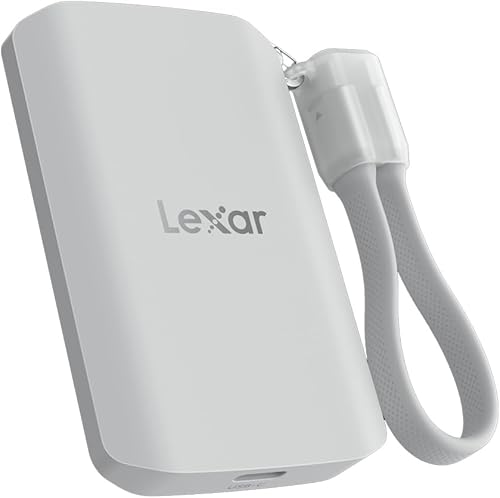
Lexar ES5 Magnetic SSD 2TB: Best for magnetic 2TB
- 2TB capacity
- MagSafe-compatible design
- Up to 2,000 MB/s read and write
- Supports Apple ProRes at 4K120FPS
- IP65 dust and water resistance
The ES5 pairs magnetic mounting with 2TB capacity and support for Apple ProRes at 4K120FPS. Check that your iPhone and recording app support the format and frame rate you plan to use.
Pros
- 2TB capacity
- MagSafe-compatible design
- IP65 dust and water resistance
Cons
- Performance may be lower on systems without USB 3.2 Gen 2x2
- Check iPhone and app support for 4K120FPS
The Lexar ES5 Magnetic SSD is the capacity pick for people who want 2TB attached to a compatible phone. It has a MagSafe-compatible design, USB-C connection and stated read and write speeds up to 2,000 MB/s.
Lexar says the drive supports Apple ProRes at 4K120FPS and has IP65 dust and water resistance with drop resistance up to 3 m. It also includes access to the Lexar App for automatic media backup.
Choose it when you need more storage and want magnetic mounting. Skip it if you only need basic 1TB file storage or if your phone and recording app don't support the format and frame rate you plan to use.
SSK Portable SSD 1TB: Best for cable flexibility
- 1TB capacity
- USB-C and USB-A cables included
- Up to 1,050 MB/s read and 1,000 MB/s write
- Supports iPhone 4K60Hz ProRes HDR capture
- USB-C iPhone 15/16/17 or newer supported
The included USB-C and USB-A cables support connections to different devices. SSK says the drive supports ProRes HDR capture on compatible iPhones with USB-C.
Pros
- Includes USB-C and USB-A cables
- Aluminum case
- Supports iPhone ProRes HDR capture
Cons
- Doesn't support Lightning-port iPhones
- Confirm the exact iPhone model and cable connection
The SSK Portable SSD works for someone who wants both USB-C and USB-A cables in the package. SSK says it supports iPhone 4K60Hz ProRes HDR capture and specifies USB-C iPhone 15/16/17 or newer.
It has 1TB capacity and an aluminum case, with stated read and write speeds up to 1,050/1,000 MB/s. SSK also describes low power draw and an activity light, while actual transfer rates depend on the host, connection and files.
Choose it if you want one drive and cables for a compatible USB-C iPhone and older computer ports. Skip it if your iPhone has Lightning, since that connection isn't supported, or if magnetic mounting is essential.
How do you choose the best external SSD for iPhone?
Choose a phone SSD by matching the drive to your exact model, task and connection first. Then weigh capacity, mounting, ruggedness and speed based on how you record and move files.
Which iPhone models support external recording?
Start by checking your iPhone model against the drive's stated support and the recording format you plan to use. Samsung specifies iPhone 15 ProRes 4K at 60fps for the T7 Shield and T7, while SanDisk specifies select iPhone 15 Pro and iPhone 16 Pro models for its Creator Phone SSD.
The Lexar ES3 has a narrower stated compatibility range: iPhone 17 series, with iPhone 14 and older explicitly excluded. SSK names USB-C iPhone 15/16/17 or newer for ProRes HDR capture, while Lexar GO specifies iPhone 15 Pro/Pro Max or above for ProRes 4K at 60fps.
File storage and direct recording are separate jobs. A drive that works for moving files may not be specified for your chosen video mode, so confirm the complete phone, cable, app and format combination before an important shoot.
Is magnetic mounting useful on an iPhone SSD?
Magnetic mounting can keep a compatible drive close to the phone during recording and reduce a loose drive swinging at the end of its cable. The SanDisk Creator Phone SSD and Lexar ES5 are the magnetic options here.
The magnet is only a mount; USB-C carries the data. If you don't need the drive attached to the phone, a standard portable SSD may be easier to use across phones and computers.
How much SSD speed matters for iPhone?
Speed matters most when you regularly move large video files or work with high-resolution footage. The T7 models and SSK state up to 1,050 MB/s read and 1,000 MB/s write, while SanDisk Extreme and Lexar ES5 state up to 2,000 MB/s read, with the ES5 also stating up to 2,000 MB/s write.
Those are drive rates under suitable conditions, not guaranteed phone transfer rates. The iPhone, cable, port, file sizes and workload can limit the connection, so pay for higher stated speed only if your workflow can use it.
What capacity should you choose for iPhone footage?
Choose capacity based on how often you can transfer files to another storage location. Every drive in this roundup has at least 1TB, and the Lexar ES5 offers 2TB for people who want more footage with them.
A larger drive can reduce how often you need to clear space, but it remains one physical copy. Keep a second copy of important photos and videos elsewhere, such as another drive or a separate backup service.
Which protection features matter for a phone drive?
A stated water, dust or drop rating can help when you carry the SSD outdoors, but it does not remove the need for careful handling. The T7 Shield, SanDisk Creator Phone SSD, SanDisk Extreme and Lexar ES5 state IP65 resistance; the Lexar GO also states IP65 and drop resistance up to 1 m.
The Samsung T7 states shock resistance and fall protection up to 6 ft, without a stated water or dust rating. If your drive will mostly stay at home or in a bag, ruggedness may matter less than compatibility and capacity.
How do you set up an external SSD with iPhone?
Connect the SSD using a cable that matches the phone's port, then check the Files app before relying on it for a shoot. For direct recording, confirm that the iPhone model, recording app and video setting support external storage.
- Check the iPhone port and use a compatible cable. The SSK includes USB-C and USB-A cables, while Samsung recommends the included SSD cable for the T7 Shield.
- Connect the drive directly or through a hub that fits your setup. The Lexar GO hub is useful when you also need accessory ports or power.
- Open the Files app and look under Browse to see whether the drive appears. If it does not, check the cable connection and the phone's storage support.
- Try copying a small, unimportant file before moving a large library or starting an important recording. Confirm that the file opens from the SSD.
- For video capture, check the recording app's external storage controls and verify the selected format and frame rate. The presence of a connected drive alone does not confirm support for every recording mode.
For more on connection choices with a computer, see our guide to using an external SSD with a laptop.
How should you care for an iPhone SSD?
Keep the drive and cable clean, dry and firmly connected, and avoid unplugging it while files are moving. Rugged ratings add protection for specific conditions, but they do not make a drive immune to damage or data loss.
After a transfer, wait until copying finishes and close files that are in use before disconnecting. Keep the drive in a pocket or case where the connector won't collect lint, and avoid bending the cable at the phone port during filming.
If a drive gets wet or dusty, follow the brand's care guidance and make sure it is clean and dry before reconnecting. SanDisk specifically says its Extreme should be clean and dry before use after exposure.
What mistakes should you avoid with an iPhone SSD?
The most common mistake is buying by speed or capacity before checking compatibility. A fast drive can still be a poor fit if your phone has the wrong port or the recording app doesn't support the target video mode.
- Assuming every USB-C iPhone supports every drive: Check the model-specific compatibility notes. Lexar ES3, for example, names the iPhone 17 series and excludes iPhone 14 and older.
- Treating storage support as recording support: Moving files and recording ProRes directly are different functions. Verify the exact mode and frame rate you want.
- Expecting the phone to reach the SSD's maximum speed: The drive's rated speed depends on the host, cable and workload. A faster spec does not guarantee a faster iPhone workflow.
- Using an unsuitable cable or loose adapter: Check the connector and use a reliable cable that fits securely. Avoid starting a long recording until a short connection and copy check succeeds.
- Unplugging during a transfer: Wait for copying to finish and close active files first. An interrupted transfer can leave a partial file.
- Keeping only one copy: A portable drive can be lost, damaged or fail. Maintain another copy of important footage in a separate place.
Which external SSD should you pick for iPhone?
Pick the Samsung T7 Shield for a rugged 1TB drive with stated iPhone 15 ProRes support, the SanDisk Creator Phone SSD for magnetic mounting on specified Pro models, or the Lexar GO if you need ports for filming accessories. Choose the Lexar ES5 when you want 2TB and magnetic attachment, and the Lexar ES3 only when its iPhone 17 compatibility matches your phone.
For a general-purpose drive that moves between phone and computer, the Samsung T7 is the straightforward choice. Whatever you pick, check your iPhone's exact compatibility and keep a second copy of important files; our guide to external storage for home computers can help with the next step.
Our top 3 picks at a glance
-
1
-
2
-
3
Frequently asked questions
Can an iPhone record video directly to an external SSD?
Yes, with a compatible iPhone, drive, cable and recording setup. Samsung says the T7 Shield supports iPhone 15 ProRes 4K at 60fps, while SanDisk specifies its Creator Phone SSD for select iPhone 15 Pro and iPhone 16 Pro models.
Check your exact iPhone model and recording setup before relying on external recording.
What should I check before connecting an SSD to an iPhone?
Check the iPhone's port, SSD cable, phone model's external storage support and recording app requirements. A drive may connect for file storage without supporting a specific video format or frame rate.
For recording, confirm the full setup before filming important footage.
Is a magnetic SSD better for iPhone?
A magnetic SSD can attach to a compatible phone, which may help keep the drive close during mobile recording. The SanDisk Creator Phone SSD and Lexar ES5 Magnetic SSD are designed for magnetic attachment.
The magnet doesn't replace the USB-C data connection, so check both the mount and cable arrangement for your phone.
Can an external SSD back up iPhone photos?
An external SSD can store copies of photos and videos when the iPhone and file-transfer method support the drive. Lexar describes app-based photo and video backup for its GO and ES5 drives.
Keep another copy of important photos in a separate location, since a single drive can be lost or damaged.