Best External Storage Drives for Home Computers
The best external storage for home computers depends on how you use it: choose a portable SSD for fast transfers, a portable hard drive for more space in a compact drive, or a desktop drive for a large collection that stays in one place.
On this page (10 sections)
- Which external storage is best for a home computer?
- Is an external SSD or hard drive better for home storage?
- Which external storage drive suits each home setup?
- How much external storage do you need for photos and files?
- Should an external drive stay connected to your computer?
- How do you set up external storage for the first time?
- How can you use and care for an external drive?
- What mistakes should you avoid with external storage?
- How can you make external storage part of a safer backup plan?
- How do you choose the best external storage for your home?
The best external storage for a home computer depends on what you keep, how often you move it, and where the drive will sit. Choose a portable SSD for fast transfers and travel, a portable hard drive for general file storage, or a desktop hard drive for a larger collection that can stay in one place.
A good match should fit your computer, file habits, and backup routine. If you mainly use Windows, see our guide to the best external hard drives for a PC.
This guide compares those drive types and four options for home storage. The picks cover active files, everyday documents, and larger archives.
Which external storage is best for a home computer?
A portable SSD suits frequent transfers, while hard drives suit people who need more capacity or a fixed archive. The right choice depends on whether speed, room, or desk-based storage matters most.
| Drive type | Good fit for | Consider |
|---|---|---|
| Portable SSD | Large working files, regular transfers, travel | Capacity and price tier |
| Portable hard drive | Everyday files and backups | Moving parts and transfer speed |
| Desktop hard drive | Large libraries that stay in one place | Power adapter and desk space |
An SSD stores data on flash memory. Portable and desktop hard drives store data on mechanical disks, so the drive type affects how you carry it and how quickly it moves files.
Think about the role the drive will play. A working drive holds the files you open and change often, while an archive holds material you may rarely need.
A backup is a separate copy that can help restore files if the computer loses them.
One external drive should not be the only copy of important files. Drives can be lost, damaged, or fail, so keep another copy on a separate drive or cloud service.
What should you check before choosing external storage?
Start with capacity, connection, location, and purpose. These checks help you rule out a drive that does not fit your setup before comparing features.
- Capacity: Estimate the size of your current files and likely additions. Leave spare space so the drive does not fill as soon as your library grows.
- Connection: Check your computer's ports and the cable included with the drive. A fast drive cannot reach its top transfer speed if the computer connection does not support it.
- Location: A portable model is easier to move between rooms or devices. A desktop drive can hold a larger collection but needs a permanent spot and may need a power adapter.
- Purpose: Decide whether you need a working drive, a backup destination, or an archive you rarely access. One drive can serve more than one role, but separate copies make a backup safer.
- Compatibility: Confirm that the drive works with your computer and that its format suits your intended use. A Mac backup routine may need a different setup than general file storage.
- Handling: Consider where the drive will travel and how it will be stored. A drive that stays on a desk has different needs from one that moves between a home computer and a camera or phone.
If you are unsure about capacity, our guide to how much external hard drive space you need explains how to estimate it from your files and habits.
Is an external SSD or hard drive better for home storage?
An SSD is a better fit for frequent transfers and portable work, while a hard drive can make sense when you need more space and can accept slower transfers. Neither drive type replaces a second backup copy.
The Samsung T7 Shield and Samsung T7 are both 1TB portable SSDs with USB 3.2 Gen 2 connections. Their read speeds can reach 1,050 MB/s when the host computer and connection support the required setup.
That speed can help when moving a folder of large video or photo files. It matters less for occasional access to small documents, where extra capacity may be more useful than faster transfers.
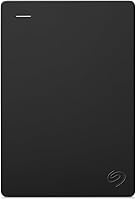
The Seagate Portable is a 2TB USB 3.0 hard drive designed to work with Windows or Mac computers. It offers twice the capacity of the SSDs here, which can suit everyday files and collections that do not need SSD transfer speeds.
The Seagate Expansion Desktop is a 6TB desktop drive. It connects over USB 3.0 and uses a power adapter, so it suits a fixed place more than a travel bag.
For a fuller comparison of storage types, read SSD vs HDD for backup. If your main goal is keeping copies of files, our Windows 11 external drive backup guide covers a practical next step.
When is an SSD worth choosing?
An SSD is worth choosing when you regularly move large folders, work across devices, or need a small drive to carry with you. Its compact size also suits a limited desk or bag.
The two Samsung options here have 1TB capacity and similar stated top read speeds. The Shield adds stated water and dust resistance, while the standard T7 has a compact aluminum body and shock resistance.
A 1TB SSD may be less useful if your main goal is storing a large collection of files you rarely open. In that case, compare higher-capacity hard drives and keep active files separate from your archive.
When does a hard drive make more sense?
A hard drive makes more sense when you need a larger collection of files in one place or want more capacity in a portable drive. It can be a sensible choice for documents, downloaded media, and backup copies that do not need frequent high-speed transfers.
The 2TB Seagate Portable is a portable option for a computer user who wants more room than the 1TB SSDs offer. The 6TB Seagate Expansion Desktop is a better fit for a home or office setup where the drive can stay connected at a desk.
A mechanical drive has moving parts, so handle it carefully while it is connected and avoid moving it during file transfers. For a travel-heavy routine or frequent movement of large project files, an SSD is the more fitting category.
Which external storage drive suits each home setup?
Choose based on where the drive will sit and what you expect it to hold. These four options cover portable SSD work, general portable storage, and a larger desk-based archive.
Samsung T7 Shield Portable SSD 1TB: portable work and active files
The Samsung T7 Shield suits someone who moves files between a home computer and other devices. It has 1TB capacity, a USB 3.2 Gen 2 connection, and read and write speeds up to 1,050/1,000 MB/s when the host and cable support the required connection.
Samsung lists compatibility with PC, Mac, Android devices, and gaming consoles. The IP65 rating and drop resistance up to 9.8 ft apply to controlled conditions, so treat the drive as more protected, not indestructible.
Choose it if you want a portable working drive for large files or regular transfers. Skip it if you need a broad archive on one drive, since 1TB may not leave enough room for a large collection.
The Shield makes sense for a person who carries a drive between home, work, or a shoot location and wants added resistance to water and dust. It also suits someone who needs a portable drive for active files but wants to keep a separate larger drive for older material.
Samsung T7 Portable SSD 1TB: compact fast transfers
The Samsung T7 suits a home computer user who wants a compact SSD for frequently moved files. It offers 1TB capacity, a USB 3.2 Gen 2 platform, and read speeds up to 1,050 MB/s when the host and cable support the required connection.
Samsung lists PC, Mac, smartphones, tablets, and gaming consoles among compatible devices. The T7 is a straightforward choice if you want SSD storage without the Shield's stated water and dust resistance.
Use it for project files, photo folders, or a portable set of documents. Skip it if you regularly handle more than 1TB of material or want one drive for a large media archive.
The T7 can suit a student or home office user who moves a working folder between compatible devices. It also fits a desk with limited room, where a small SSD is easier to place beside a laptop than a desktop drive.
Seagate Portable 2TB: everyday files in a travel-ready drive
The Seagate Portable 2TB suits everyday storage when you want more capacity than the 1TB SSDs here. It connects by USB 3.0, includes an 18 in cable, and is designed to work with Windows or Mac computers.
Seagate describes setup as plug and play, with automatic recognition and no software required. The capacity can suit documents, downloads, and media files that do not need SSD transfer speeds.
Choose this model if you want a portable hard drive for occasional backups or an extra file copy. Skip it if you frequently move the drive while it is running or need the faster transfers of an SSD.
This drive is a practical fit for a home computer that needs more room for folders and general storage. For a larger photo library, see our guide to external hard drives for photographers.
Seagate Expansion Desktop 6TB: a larger desk-based archive
The Seagate Expansion Desktop 6TB suits a computer setup that needs more storage in one fixed place. It connects over USB 3.0 and uses a power adapter, so it is better suited to a desk than a bag.
Seagate says the drive supports drag-and-drop file saving and automatic recognition on Windows and Mac computers. Reformatting is required for use with Time Machine, so plan for that step before setting it up with a Mac backup routine.
Choose it for a large media archive, computer backups, or files you rarely carry elsewhere. Skip it if you want a small drive for travel or a storage device that needs no separate power adapter.
If you want a fixed drive with room for a large collection, this is the clearest match among these options. For more models in the same category, compare our best desktop external hard drives.
How much external storage do you need for photos and files?
Choose capacity by counting what you have now and estimating what you will add. File type and habits affect the answer, so there is no one size that fits every home computer.
Start by checking the folders you want on the drive. Include photo and video libraries, documents, and downloads.
Add any computer backup you plan to keep there, then leave room for new files and avoid choosing a drive that will be nearly full on day one.
A 1TB SSD can suit an active set of files that you open often. The 2TB portable hard drive offers more room for broader everyday storage, while the 6TB desktop drive fits a larger collection that can stay at home.
Capacity alone does not decide how easy a drive is to use. A 6TB drive may be a poor fit if you need to carry it every day, while a small SSD can become cramped if you plan to keep years of photos on it.
You can keep active work separate from long-term storage. For example, use an SSD for current projects and a larger hard drive for older files and backup copies.
Leave room for the computer's file system and for growth. The number printed on a drive is not all available for personal files after formatting and system use.
Should an external drive stay connected to your computer?
Leave a drive connected when it supports a routine you use often, such as scheduled backups or access to current project files. Disconnect it when you do not need it, especially if it holds your only backup copy.
A connected backup is convenient, but it can be exposed to the same power event, malware, or accidental deletion as the computer. An offline copy adds separation from those problems.
If you use an SSD as an active work drive, it may stay connected while you edit or move files. For a hard drive used as a backup, connect it when the backup runs, then eject it before unplugging it.
Safely ejecting gives the computer a chance to finish pending writes. Follow our steps for safely ejecting an external hard drive on a PC or Mac.
How do you set up external storage for the first time?
Connect the drive to the computer with its included or compatible cable, then confirm that the computer recognizes it. The Seagate Portable and Expansion are described as plug-and-play drives for Windows and Mac, while the Expansion needs its power adapter.
Before you store files, decide what the drive is for. A general storage drive can hold folders you copy manually, while a backup drive should be configured in the computer's backup tool and checked on a regular schedule.
If the computer asks to format the drive, pause and confirm the format is right for your operating system and intended use. Formatting can erase existing files, and a drive set up for one purpose may need reformatting for another.
The Seagate Expansion needs reformatting for Time Machine use. Check the steps before you begin and make sure the drive has no files you still need.
After setup, create a simple folder structure that makes sense to you. You might separate photos, documents, active projects, and archives, then use dates or clear project names so files are easier to find later.
How can you use and care for an external drive?
Handle the drive according to its type and use, and keep it away from unnecessary movement during file transfers. A desktop drive should have a stable place and its power adapter connected, while a portable drive should be stored where its cable and connector will not be bent.
Do not unplug a drive while files are being copied or saved. Use the computer's eject command, wait for confirmation, and then disconnect the cable.
Keep important files organized and make sure you know which copy is current. If you regularly edit files from multiple computers, use a consistent folder structure and avoid making competing copies with unclear names.
For a hard drive, avoid knocks while it is running. The Seagate portable and desktop models use mechanical disks, so careful handling is sensible when the drive is connected.
For an SSD, avoid treating resistance features as permission to expose it to any condition. The T7 Shield has an IP65 rating and stated drop resistance under controlled conditions, but careful storage and a second backup remain useful.
What mistakes should you avoid with external storage?
The most common mistake is treating one drive as a complete backup plan. A single copy cannot help if the drive is lost, damaged, or fails at the same time you need the files.
Another mistake is buying by capacity alone. A large desktop drive can be awkward if you need portability, while a compact SSD can run out of room if you are storing a large archive.
Do not assume that every computer connection will deliver the drive's fastest possible speed. The Samsung SSDs need a compatible host and cable for their maximum stated speeds, so check your computer's ports before choosing them for large transfers.
Do not move a mechanical drive while it is copying files. Also avoid unplugging any drive without safely ejecting it, since pending writes could be interrupted.
Finally, do not format a drive before checking its contents and intended use. Reformatting can erase files, and a Time Machine setup may need a different format from a general-purpose drive.
How can you make external storage part of a safer backup plan?
Use an external drive as one copy in a backup plan, not the only home for important files. A second copy on another drive or cloud service can help if the first drive is lost or fails.
Choose a backup schedule that matches how often your files change. If you work on important files every day, a routine backup should happen more often than if you only add files occasionally.
Keep the backup drive connected only when needed, and check from time to time that the files you expect are present and readable. A backup is useful only if you can find and restore the files later.
For a Windows computer, start with our guide to backing up Windows 11 to an external drive. For a broader overview, see how to back up a computer to an external drive.
How do you choose the best external storage for your home?
Choose the Samsung T7 Shield if you want a portable 1TB SSD with stated water and dust resistance. Pick the Samsung T7 for compact SSD storage and fast transfers, the Seagate Portable for 2TB of everyday files, or the Seagate Expansion Desktop for a larger 6TB collection that can stay on a desk.
Before buying, confirm the capacity, computer connection, and backup software fit your setup. If you need to carry files often, favor a portable SSD; if you need room for a large collection at home, favor the desktop drive.
For photo collections, read our guide to the best way to back up photos and keep another copy of the files you cannot replace.
Frequently asked questions
What is the best external storage for a home computer?
Choose a portable SSD if you move large files often, a portable hard drive if you want more space in a compact drive, or a desktop hard drive for a larger home archive. Match capacity and connection to your computer, then keep a second copy of files that matter.
Is an external SSD or hard drive better for photos?
An external SSD suits photo libraries you open or move often because SSDs offer fast transfers and compact portability. A hard drive can suit a larger archive that stays at home.
Keep another copy of important photos on a separate drive or backup service.
Can I use one external drive with a PC and Mac?
Some drives are designed to work with both Windows and Mac computers, but the file system and backup setup affect how you can use them. Check compatibility and whether formatting is needed before moving files, especially if you plan to use Time Machine.
How much external storage do I need?
Add up the files you want to store, then leave room for future additions. A 1TB drive may suit a focused working set, while 2TB or 6TB options provide more space for broader collections.
See our guide to choosing external hard drive size.