SSD vs HDD for Backup: Which Is Better? (October 2026)
Choose an HDD for more capacity on one drive, or an SSD for faster transfers and a portable backup. This SSD vs HDD for backup guide helps match drive type and capacity to your files and routine.
On this page (9 sections)
- SSD vs HDD for backup: what is the main difference?
- Which type gives you more room for backup?
- Is an SSD faster for backup transfers?
- Which drive is easier to carry and protect?
- Do SSDs or HDDs last longer as backup drives?
- How should you set up an external HDD or SSD for backup?
- What backup mistakes should you avoid?
- How should you choose an external HDD or SSD for backup?
- Which backup drive should you pick?
Choose an HDD for more capacity on one drive, or an SSD for faster transfers and a portable backup. Your SSD vs HDD for backup choice depends on how much data you keep, how often you update it, and whether the drive travels.
An HDD can suit a large photo, video, or document library that changes slowly. An SSD can be a better match for current work files, frequent updates, or a backup you carry between places.
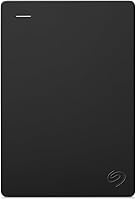
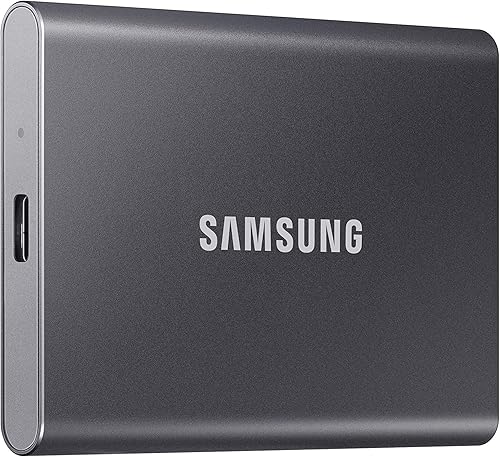
The Samsung T7 is a 1TB SSD, the Seagate Portable holds 2TB, and the WD Elements Portable holds 5TB. Those sizes make it easier to compare the tradeoff, but start by estimating how much space your own files need.

SSD vs HDD for backup: what is the main difference?
An SSD stores files on flash memory, while an HDD uses a mechanical disk. SSDs are a strong fit for frequent transfers and travel, while HDDs can give you more capacity on one drive.
The Samsung T7 has read speeds up to 1,050 MB/s and write speeds up to 1,000 MB/s. The Seagate Portable and WD Elements are mechanical drives.
Those figures don't tell the whole story of a backup. The files, computer, cable, connection, and backup method all affect how long a copy takes.
The T7 reaches its maximum stated speeds only when the host and cable support USB 3.2 Gen 2 and UASP mode is enabled.
How does an external SSD or HDD fit your routine?
An SSD suits a backup you refresh often, such as current work files or a camera archive you move between devices. The T7 works with PC and Mac and is described as shock resistant, with fall protection up to 6 feet.
An HDD suits a larger collection that grows over time and can stay in one place during backups. The WD Elements offers the largest capacity here, while the Seagate Portable offers a middle choice for routine files.
If you need a drive for a home computer, our best external storage drives for home computers guide compares options for everyday storage. Use it if the drive will serve a broader role than backups alone.
Which type gives you more room for backup?
An HDD is the better fit among these examples when you need the most capacity in one portable drive. The WD Elements holds 5TB, compared with 2TB for the Seagate and 1TB for the Samsung T7.
Capacity needs depend on what you plan to copy. A folder of documents may stay modest, while photo and video collections can grow quickly, especially if you keep older versions rather than replacing them.
Before buying, check how much space your files currently use. Leave room for new files, and decide whether you need one current backup or several dated copies that let you return to earlier versions.
If you're unsure which capacity to choose, use our external hard drive size guide. It helps you estimate space based on the files you plan to keep.
Is an SSD faster for backup transfers?
An SSD can reduce the time spent moving large files when the computer and connection can use its speed. The Samsung T7 reaches stated read speeds up to 1,050 MB/s and write speeds up to 1,000 MB/s under the right connection conditions.
That speed can matter if you regularly refresh a working backup or copy large video files. It may matter less for an occasional backup of a modest folder, where capacity and routine matter more.
Check your computer's ports before paying for speed you cannot use. A slower connection can limit the transfer rate, and the files themselves also affect copy time.
For the backup process itself, follow our guide to backing up Windows 11 to an external drive. That guide covers the steps, while this comparison helps you choose between drive types.
Which drive is easier to carry and protect?
An SSD is a practical choice when you move a backup drive around often. The T7 weighs 2.08 oz and has a solid aluminum unibody with shock resistance.
Portable HDDs are made to connect to computers over USB, but their mechanical storage calls for careful handling. Keep either drive away from knocks, liquids, and loose cables, and safely eject it before unplugging.
A drive that stays on a desk may not need the same emphasis on size or shock resistance. For a stationary backup, prioritize enough space and a repeatable schedule.
If the drive will sit away from your computer for long periods, read our guide to external hard drives for long-term backup. Keep another copy of important files in a separate place.
Do SSDs or HDDs last longer as backup drives?
Neither drive type should be your only long-term copy. SSDs avoid moving parts, while HDDs use mechanical components, but either can fail, be damaged, or become inaccessible.
How long a drive remains usable depends on its model, handling, use, and storage conditions. No drive protects against loss, theft, accidental deletion, or damage to the computer and drive at the same time.
Refresh backups on a schedule that matches how often your files change. After copying, open a few files from the drive to confirm that the backup is usable, and replace a drive if it shows errors or behaves unusually.
Our guide on how long external hard drives last covers lifespan and care. For a separate copy away from home, compare an external hard drive with cloud storage before deciding how to protect important files.
How should you set up an external HDD or SSD for backup?
Set up the drive with a clear folder or backup plan, then confirm that the first copy worked. A drive connected to the computer is only useful as a backup when files are copied to it and you can retrieve them.
Start by connecting the drive directly to a compatible USB port. The Seagate Portable is designed for automatic recognition on Windows or Mac, with drag-and-drop file copying and no software required for basic setup.
For any new drive, check whether its format works with the computers you plan to use. Reformatting can erase existing files, so check the drive first and make a copy of anything already stored on it.
Our guide to whether external hard drives need formatting explains what to check before you change a drive's format.
Choose a backup method that suits your files. You can copy folders manually, use your computer's built-in backup tool, or use backup software that keeps older versions.
Whatever method you choose, do a small first run and open a few copied files before trusting the routine.
What backup mistakes should you avoid?
The biggest mistake is relying on one drive as the only copy of important files. A drive can fail, go missing, or be affected by the same event as the computer it backs up.
A second common mistake is choosing a drive that barely fits the current data. Leave room for growth and older versions, or you may have to reorganize the backup soon after setting it up.
Don't assume that connecting a drive starts a backup. Confirm that the copy or scheduled process finishes, and check that files open.
Also avoid unplugging during a transfer, since an incomplete copy may leave some files missing or damaged.
Keep a portable backup disconnected when it's not in use, especially if you don't need continuous access. Safely eject before unplugging, store it in a dry place, and reconnect it often enough to keep the backup current.
How should you choose an external HDD or SSD for backup?
Choose capacity first, then weigh speed, portability, and how you plan to keep another copy. A fast drive won't help if it cannot hold the data you need to protect.
Use this decision rule:
- Choose an HDD if you want more capacity on one drive and can let backups take longer.
- Choose an SSD if you update files often, carry the drive, or value faster transfers and shock resistance.
- Choose a second drive or cloud copy if losing your only backup would be costly.
- Skip the 1TB T7 if your data already needs more room, and skip the 5TB HDD if its extra capacity would sit unused and you value a smaller, faster working backup.
The Seagate Portable is a middle option when 2TB is enough and plug-and-play setup fits your routine. The Samsung T7 is for frequent transfers in a smaller-capacity package, while the WD Elements suits a larger collection.
Which backup drive should you pick?
Pick the Samsung T7 for frequent transfers, the Seagate for a 2TB everyday HDD, or the WD Elements when you need 5TB. For SSD vs HDD for backup, choose an SSD for speed and travel, or an HDD for more space on one drive.
Keep an additional copy of important files in a separate place, then check that your backup opens and stays current. If you want an off-site option, compare an external hard drive with cloud storage before settling on your routine.
External sources: Samsung T7 Portable SSD, Seagate Portable Drive.
Frequently asked questions
Is an SSD or HDD better for backup?
An HDD often fits a large library because it offers more capacity in these examples, while an SSD suits frequent transfers and portable use. Choose based on the space your files need, how often they change, and how long you're willing to wait for each copy.
Is an SSD safer than an HDD for backup?
An SSD has no spinning disk, and the Samsung T7 adds shock resistance and fall protection. That can suit a drive that travels, but no single drive type protects against every failure, loss, or accidental deletion.
Keep another copy of important files in a separate place.
How much storage do I need for a backup drive?
Start with the space your files use now, then leave room for new files and older versions if your backup method keeps them. The 1TB Samsung T7, 2TB Seagate, and 5TB WD Elements cover different needs.
Check your computer's storage settings before choosing.
Can I use an external SSD for Windows backups?
Yes. An external SSD can hold a Windows backup if it has enough free space and your backup method supports the drive.
Connect it directly, follow Windows' backup steps, and check that the backup completes and files can be opened.
Should I leave my backup drive plugged in?
Disconnect a portable backup drive when a backup is complete if you want to reduce its exposure to power events, malware, or accidental changes. Eject it safely first, then reconnect it on a regular schedule to make and verify another copy.