External Hard Drive vs NAS for Home Backups: Which Is Better? (October 2026)
Choose an external hard drive for a simple backup connected to one computer; choose a NAS when several devices need shared network storage. Keep another copy of important files separate from either one.
On this page (9 sections)
- External hard drive vs NAS: which is easier to set up?
- When does a NAS make more sense?
- How should you compare usable capacity?
- Which option is easier to access around the house?
- What happens if one device fails?
- Which setup fits a photo library or family files?
- How do you set up and care for an external backup drive?
- What common backup mistakes should you avoid?
- Which is better for your home: an external hard drive or NAS?
Choose an external hard drive for a simple backup connected to one computer; choose a NAS when several devices need shared network storage. In an external hard drive vs NAS decision, start with who needs access, how much setup you can manage and where you will keep a second copy.
A USB drive connects directly to a computer. A NAS connects to your home network, where compatible devices can access shared files.
That difference shapes setup, everyday access and the backup routine you'll need to maintain.
Neither option protects files if it is the only copy. Plan a separate copy of anything you cannot replace, such as family photos, work files or personal records.


External hard drive vs NAS: which is easier to set up?
An external hard drive is usually the easier starting point for one computer; a NAS needs network setup and ongoing attention. Choose the direct USB route if you want to connect a drive, run a backup and put it away.
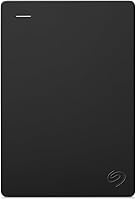
With a USB drive, connect it to your computer and choose a backup method. The Seagate Portable 4TB is recognized automatically when connected to a Windows or Mac computer, and it needs no software for basic setup.
A NAS takes more steps. You need to connect it to your network and follow the maker's setup instructions.
Then decide which computers and folders should use it. The exact steps and available features vary by NAS model, so check those details before choosing one.
Before you buy, decide who will set it up, which devices need access and how often backups should run. If nobody in the household wants to manage a network device, a direct drive is likely the better fit.
If you're backing up a Windows PC, our guide to backing up Windows 11 to an external drive explains the computer-and-drive approach. For more routines, see our backup how-to guides.
Is an external drive enough for one computer?
An external drive can be a practical backup destination for one computer when you connect it regularly and keep another copy elsewhere. If you unplug it between backups, it also spends less time exposed to the same online threats as the computer.
A NAS may add complexity without much benefit if one person uses one computer and doesn't need shared folders. Connect the drive, run the backup, confirm the files are there and disconnect it when finished.
For automatic backups, check that your chosen software supports the schedule and files you need. A drive does not make a backup simply by being plugged in, and a manual routine only works if you remember to run it.
When does a NAS make more sense?
A NAS makes more sense when several people or computers need access to shared files on the home network. It gives a household a central place to reach folders without moving a drive between computers.
For example, a household with a desktop and multiple laptops could use network storage for shared photos and documents. An external drive generally serves the computer it is connected to at that moment, so sharing may require reconnecting it or copying files between devices.
A NAS is not automatically a backup just because it stores files. If the only copy of a folder lives on the NAS, accidental deletion, device failure or another local problem can put it at risk.
Plan a separate backup for the NAS, too. If you don't want to check network access, manage accounts or arrange another backup, skip the NAS and use a simpler drive routine.
For a single PC, the WD My Book 8TB offers a local desktop backup option with included backup software. The WD Elements Desktop 8TB is another choice for adding desktop storage.
How should you compare usable capacity?
Estimate the space your files need, then leave room for new files and backup history. External drive capacity is stated for a specific model, while a NAS's usable space depends on its unit and installed drives.
The WD My Book and WD Elements desktop drives in this comparison each have 8 TB of stated capacity. The Seagate Portable has 4 TB, which can suit a laptop backup or a smaller collection.
For a NAS, check its usable capacity after accounting for the storage layout you plan to use. Some layouts reserve space for redundancy, so the available amount may be lower than the combined capacity of the drives.
Look at the storage used on every computer you plan to cover. If several users have large photo or video folders, add their needs together before choosing a capacity.
Think about what you want to keep from earlier backups, too. A single current copy takes less space than a plan that keeps previous versions, and future photos, downloads and work files will need more room.
Our guide to choosing an external hard drive size can help you estimate a suitable drive capacity.
Which option is easier to access around the house?
A NAS is handy for shared network access, while a USB drive is direct and simple when you can connect it to the computer you need. Choose according to where files are used and how many people need them.
If you manage one computer, direct USB access is easy to understand. The Seagate Portable includes an 18 in USB 3.0 cable and can move between compatible computers when needed.
A NAS keeps shared files in one network location. That can help when several people need the same folders, but they depend on the NAS being powered, connected and configured correctly.
Remote access requires extra care. Check the NAS maker's instructions for access controls and security before making files available outside your home network.
A portable drive is useful when you need to carry a backup, but travel also raises the chance of loss or damage. Keep a separate copy somewhere else if the drive leaves home.
What happens if one device fails?
One external drive or one NAS is still one storage device, so neither should be your only copy. Keep multiple copies of important files, with at least one stored away from the main device.
A NAS may use multiple internal drives, depending on its configuration. Some configurations can help keep storage available if a drive fails, but they don't replace an independent backup against deletion, theft, damage or failure of the NAS itself.
An external drive can also fail or be misplaced. Disconnect it after backing up and store it somewhere safe.
If it begins acting unreliably, make another copy of important files before relying on it again.
A practical home plan can include working files on a computer, a local backup on an external drive or NAS, and another copy stored separately. The CISA guidance on backing up data explains why maintaining backup copies matters.
For a second local drive or a copy kept elsewhere, see our external hard drive vs cloud storage comparison.
Which setup fits a photo library or family files?
Choose a NAS when several people need a shared photo library; choose an external drive when you want a direct copy you can store separately. In either case, keep another copy of photos that would be difficult to replace.
A shared network folder can make it easier for family members to reach the same collection. Set clear rules about who can edit or delete files, then include the NAS in a separate backup routine.
A drive stored away from the computer can serve as a straightforward second copy. The WD My Book includes backup and device management software with password protection, while the Seagate Portable supports a drag-and-drop approach on Windows or Mac computers.
Our guide to the best way to back up photos explains how to keep copies in more than one place. If your collection is growing, the long-term backup drive guide can help you choose dedicated storage.
How do you set up and care for an external backup drive?
Connect the drive directly, choose a backup method, run it on a schedule and disconnect the drive when the backup is complete. Check that you can find and open backed-up files instead of assuming the process worked.
The WD desktop options include an AC adapter, so plan a stable spot near the computer and a power outlet. The My Book's backup software requires download and installation; the Elements Desktop is plug-and-play ready for Windows PCs.
Keep the drive on a steady surface and avoid pulling the cable while files are being copied. Use the computer's safe eject option before unplugging it, and store an unplugged backup where it won't be knocked around or exposed to household spills.
For a NAS, follow its setup and maintenance instructions, use a strong access password and review which devices can reach the shared folders. Schedule a separate backup of its contents and check periodically that the second copy is current.
What common backup mistakes should you avoid?
The main mistake is treating convenient storage as a complete backup plan. A single drive, a single NAS or one network folder can still leave files exposed to loss.
- Keeping every copy together: Theft, fire or water damage can affect a computer and nearby storage at once. Keep another copy in a separate location.
- Assuming connection means backup: A drive may be empty or an automated job may have stopped. Check that recent files are present.
- Forgetting to reconnect a portable drive: A backup schedule cannot run if the drive is disconnected. Set a reminder or choose a routine you can follow.
- Treating NAS drive redundancy as backup: A storage layout may help with a drive problem, but it won't protect against every loss or accidental deletion. Maintain an independent copy.
- Ignoring access and security: Shared folders should be available only to the people and devices that need them. Review remote access settings before enabling access away from home.
- Filling the drive completely: Leave space for new files and any backup history you want to keep. Review capacity before the drive is nearly full.
Which is better for your home: an external hard drive or NAS?
Pick an external hard drive for a straightforward backup of one computer; pick a NAS when several devices truly need shared network storage. In the external hard drive vs NAS choice, the best fit is the one you'll keep backing up and pair with a separate copy.
Choose the WD My Book if you want a desktop drive with backup software and hardware encryption. Choose the WD Elements Desktop if you want desktop storage that is plug-and-play ready for Windows PCs.
Choose the Seagate Portable if you need a drive that can move between compatible computers. Choose a NAS when shared access matters enough to justify network setup and ongoing maintenance.
For irreplaceable files, use another copy stored separately from your main computer and storage device. Set a schedule, confirm recent files are included and review the routine when your household's devices or storage needs change.
Frequently asked questions
Is a NAS better than an external hard drive for backups?
A NAS suits a household that needs shared storage for several devices, while an external hard drive is simpler for backing up one computer at a time. Neither is a complete backup plan by itself.
Keep another copy separate from the main storage so one device problem doesn't take every copy with it.
Can I use an external hard drive as my only backup?
You can use one as a backup destination, but it shouldn't be the only copy of important files. A drive can be lost, damaged or fail, and a connected backup may be affected by the same event as your computer.
Add another copy, such as a second drive stored elsewhere or cloud storage.
Does a NAS replace cloud backup?
A NAS can provide storage on your home network, but it doesn't automatically create an off-site copy. If a local event affects both your computer and the NAS, files stored only at home may be lost.
Pair local storage with a separate backup kept somewhere else.
How much external hard drive space do I need for backup?
Choose capacity based on the files you want to protect and room for future additions. The WD desktop drives here each offer 8 TB, while the Seagate portable drive offers 4 TB.
Check your computer's used storage, then allow enough headroom for new files and earlier backup versions.
Can I connect an external hard drive to a NAS?
Some NAS systems can use an external USB drive, but compatibility and backup steps depend on the NAS model and its software. Check the NAS maker's instructions for supported drives and backup options before relying on that setup.