9 Best External Hard Drives for Long-Term Backup (October 2026)
The best external hard drives for long-term backup include the Seagate Expansion Desktop 6TB for home archives, the WD My Book 8TB for encrypted desks, and the WD Elements Portable 5TB for off-site copies.
On this page (7 sections)
- How we chose the best external hard drives for long-term backup
- Which external hard drive is best for long-term backup?
- How do you choose a drive for long-term backup?
- How do you set up an external hard drive backup?
- What routine helps keep a backup useful?
- What common backup mistakes should you avoid?
- Which external hard drive should you choose for long-term backup?
The Seagate Expansion Desktop 6TB is the best external hard drive for long-term backup for most home archives. It gives you a practical balance of capacity, simple drag-and-drop saving, and included Rescue Data Recovery Services.
Choose a portable drive if you plan to store the backup away from your computer, the WD My Book if encryption matters, or a larger desktop model if you have a large media library. For long-term protection, keep a second copy somewhere separate and check that your files still open.
If you need a fixed desk setup, see our guide to the best desktop external hard drives. For a photo collection, the best way to back up photos explains how to keep more than one copy.
Our picks at a glance
-
1

-
2

-
3

How we chose the best external hard drives for long-term backup
We compared capacity, desktop or portable design, connections, and backup or security features for the needs of a long-term archive. The picks cover simple manual copying, included backup software, password protection, and capacities from 5TB to 24TB.
A drive with more space can hold more files in one place, but capacity does not make a backup safe by itself. If a drive is lost, damaged, or unreadable, a separate copy gives you another way to recover your files.
These drives use USB connections and include both portable and desktop options. Browse large external hard drives for more choices in this storage category.
| Product | Best for | Capacity | Design | Connection | Our score |
|---|---|---|---|---|---|
| Seagate Expansion Desktop 6TB | home archives | 6TB | Desktop, 3.5-inch | USB 3.0 | 8.6 |
| WD My Book 8TB | encrypted desks | 8TB | Desktop, 3.5-inch | USB 3.0; USB 2.0 compatible | 8.5 |
| WD Elements Portable 5TB | off-site copies | 5TB | Portable, 2.5-inch | USB 3.2 Gen 1 / USB 3.0 | 8.4 |
| WD Elements Desktop 8TB | Windows libraries | 8TB | Desktop, 3.5-inch | USB 2.0 / USB 3.0 | 8.3 |
| Seagate Portable 5TB | laptop backups | 5TB | Portable | USB 3.0 | 8.3 |
| Seagate Expansion Desktop 24TB | huge collections | 24TB | Desktop, 3.5-inch | USB 3.0 | 8.2 |
| WD Elements Portable 6TB | traveling archives | 6TB | Portable, 2.5-inch | USB 3.2 Gen 1 / USB 3.0 | 8.2 |
| WD Elements Desktop 20TB | growing archives | 20TB | Desktop, 3.5-inch | USB 3.0 | 8.1 |
| WD My Passport 5TB | private travel | 5TB | Portable, 2.5-inch | USB 2.0 / USB 3.0 compatible | 8.1 |
Which external hard drive is best for long-term backup?
The Seagate Expansion Desktop 6TB is the simplest general-purpose pick, while the other drives suit specific needs such as encryption, portability, and very large archives. Match your choice to where you will keep the drive, how much data you need to save, and whether you prefer manual copies or backup software.
Best external hard drive for long-term backup at home
Seagate Expansion Desktop 6TB: Best for home archives
- 6TB capacity
- USB 3.0
- Drag-and-drop file saving
- Rescue Data Recovery Services
A desktop drive with 6TB of space, simple drag-and-drop saving, and included Rescue Data Recovery Services. It needs its power adapter as well as a USB connection.
Pros
- 6TB capacity
- No software required for basic setup
- Rescue Data Recovery Services included
Cons
- Needs a power adapter
- Time Machine use requires reformatting
The Seagate Expansion Desktop 6TB suits a home or office archive that stays near a computer. It connects to Windows or Mac computers, and basic setup needs no software.
You can save files by dragging and dropping them onto the drive. It includes Rescue Data Recovery Services and a limited warranty, but those services do not replace a separate backup copy.
Plan for a place near an outlet because this desktop drive needs its power adapter along with its USB connection. Reformatting is required to use it with Apple Time Machine.
Choose it for a straightforward 6TB archive at a stationary desk. Skip it if you need a drive you can toss in a bag or want substantially more room in one device.
Best encrypted external hard drive for long-term backup
WD My Book 8TB: Best for encrypted desks
- 8TB capacity
- 256-bit AES hardware encryption
- Password protection
- Backup software available
The My Book pairs desktop capacity with hardware encryption and password protection. Its device management and backup software requires download and installation.
Pros
- 256-bit AES hardware encryption
- Password protection
- 8TB capacity
Cons
- Desktop design needs a power connection
- Backup software requires download and installation
The WD My Book 8TB fits a stationary backup plan where both capacity and access control matter. It includes 256-bit AES hardware encryption and password protection, plus device management and backup software that requires downloading and installing.
It connects through USB 3.0 and is compatible with USB 2.0. That helps when you need to connect it to an older computer, though transfer speeds will depend on the connection and computer.
Use the included software if its backup options fit your routine, and keep a separate copy of critical files elsewhere. Encryption can help limit access if someone gets the drive, but it cannot recover files lost to a failed backup.
Choose My Book for an 8TB desktop archive with encryption features. Skip it if you need a portable drive or do not want to install software for the backup features.
Best external hard drive for long-term backup off-site
WD Elements Portable 5TB: Best for off-site copies
- 5TB capacity
- Portable 2.5-inch design
- Plug-and-play expandability
- USB 3.2 Gen 1
A portable 5TB drive is easier to move away from your computer after a backup. Its compact format suits a separate storage spot.
Pros
- Portable design
- 5TB capacity
- USB-A cable included
Cons
- Less capacity than the desktop options here
- No backup software is specified
The WD Elements Portable 5TB is a good fit when you want to move a copy away from your computer after a backup. Its portable 2.5-inch design and included USB-A cable suit a laptop or desktop routine.
WD describes it as plug-and-play expandability, and it supports USB 3.2 Gen 1 and USB 3.0 devices. No backup software is specified, so use your computer's backup tools or copy files manually.
Disconnect it between backup sessions and keep it in a dry, protected place. The separate storage spot is useful only if you remember to bring the drive back for the next scheduled copy.
Choose it for a portable 5TB copy you can store elsewhere. Skip it if your archive is larger than that or you want backup software included.
Best external hard drive for a Windows backup library
WD Elements Desktop 8TB: Best for Windows libraries

- 8TB capacity
- Desktop design
- Plug-and-play ready for Windows PCs
- USB 2.0 and 3.0 connectivity
This desktop option gives Windows users 8TB for a local backup archive. It includes an AC adapter and USB cable.
Pros
- 8TB capacity
- Plug-and-play for Windows PCs
- USB 2.0 and USB 3.0 compatibility
Cons
- Desktop design needs a power connection
- Mac use may require formatting changes
The WD Elements Desktop 8TB gives a Windows PC a sizable archive without adding security software or features you may not need. It is plug-and-play ready for Windows PCs and supports USB 2.0 and USB 3.0 connections.
The package includes an AC adapter, USB cable, and quick start guide. Because it is a desktop drive, choose a stable spot near the computer and an outlet.
WD specifies compatibility with Windows 10, Windows 8.1, and Windows 7. If you plan to use it with a Mac, check the format requirements before copying files.
Choose it for a Windows archive that needs 8TB. Skip it if you need portability or built-in encryption and password protection.
Best external hard drive for long-term laptop backups
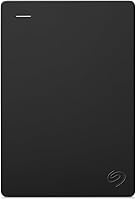
Seagate Portable 5TB: Best for laptop backups

- 5TB capacity
- Portable design
- Automatic recognition for Windows or Mac
- USB 3.0 cable included
The portable Seagate offers 5TB with a simple drag-and-drop backup process. Its compact design can be stored away from the computer between backup sessions.
Pros
- Portable design
- Automatic recognition for Windows or Mac
- USB cable included
Cons
- Less capacity than the desktop options here
- No included backup software is specified
The Seagate Portable 5TB suits a backup routine that includes moving the drive to another room or storage location. It is designed to work with Windows or Mac computers, with automatic recognition and drag-and-drop setup.
The drive includes an 18-inch USB 3.0 cable. Keep the computer and drive close enough for the cable to reach without tension while copying.
A portable drive can make a separate copy easier to store away from your main computer. Put it somewhere protected from drops, and disconnect it when the backup is complete.
Choose it for portable 5TB storage with simple file copying. Skip it if you need more space or want backup software included.
Best external hard drive for a very large archive
Seagate Expansion Desktop 24TB: Best for huge collections

- 24TB capacity
- Desktop, 3.5-inch design
- USB 3.0
- Rescue Data Recovery Services
The 24TB capacity suits a large archive of files that would otherwise need several smaller drives. It uses a power adapter and supports drag-and-drop saving.
Pros
- Largest capacity in this roundup
- Rescue Data Recovery Services included
- USB 3.0 connection
Cons
- Desktop design needs a power connection
- Large capacity does not replace a second backup copy
The Seagate Expansion Desktop 24TB is the capacity pick for a large archive of video, photos, and other files. It can keep more material together than the smaller desktop options in this roundup.
It supports USB 3.0 and drag-and-drop saving, and includes Rescue Data Recovery Services. Basic setup on Windows or Mac needs no software, while Time Machine use requires reformatting.
Make room for its power adapter and a stable place near the computer. A 24TB drive still holds one copy, so keep a second backup separately.
Choose it when one very large archive is the priority. Skip it if you need a portable drive or have far less data to protect.
Best external hard drive for long-term backup on the move
WD Elements Portable 6TB: Best for traveling archives
- 6TB capacity
- Portable 2.5-inch design
- USB 3.2 Gen 1
- USB-A cable included
This portable model offers 6TB for a backup you may want to store separately from your computer. It supports USB 3.2 Gen 1 and USB 3.0 devices.
Pros
- 6TB in a portable design
- USB-A cable included
- Plug-and-play expandability
Cons
- No backup software is specified
- Portable drives still need careful storage and handling
The WD Elements Portable 6TB offers more space than the 5TB portable options while keeping a portable format. It supports USB 3.2 Gen 1 and USB 3.0 devices, and the package includes a USB-A cable.
That extra capacity helps if your collection is growing but you still want to move the drive between locations. WD describes the drive as plug-and-play, but backup software is not specified.
Use your computer's backup feature or copy files on a regular schedule. Disconnect the drive afterward and return it to a protected storage spot.
Choose it for a portable archive that needs 6TB. Skip it if you want more capacity than a portable drive offers here or need backup software built in.
Best external hard drive for a growing collection
WD Elements Desktop 20TB: Best for growing archives

- 20TB capacity
- Desktop design
- USB 3.0
- AC adapter included
The 20TB capacity gives a large photo, video, or document library room to grow. Mac use requires reformatting.
Pros
- 20TB capacity
- AC adapter and USB cable included
- Plug-and-play for Windows PCs
Cons
- Desktop design needs a power connection
- Mac use requires reformatting
The WD Elements Desktop 20TB suits a large collection that has outgrown smaller drives. It connects over USB 3.0 and includes an AC adapter, USB cable, and quick install guide.
WD describes it as plug-and-play ready for Windows PCs. Mac use requires reformatting, so check that requirement before using it as a shared archive or moving files from an existing Mac backup.
Its desktop design works best in a stable location with room for the drive and power connection. Keep another copy of critical files in a separate place.
Choose it for a growing archive that needs 20TB in one desktop drive. Skip it if your current files fit comfortably on a smaller drive or you need an easy off-site portable copy.
Best encrypted portable external hard drive for backup
WD My Passport 5TB: Best for private travel

- 5TB capacity
- Portable design
- Password protection and hardware encryption
- Backup software with ransomware defense
My Passport combines a portable 5TB drive with password protection and hardware encryption. Included device management and backup software offers ransomware defense.
Pros
- Portable design
- Password protection and hardware encryption
- Backup software with ransomware defense
Cons
- Mac use requires reformatting
- Software installation is needed for its backup features
The WD My Passport 5TB combines portable storage with password protection and hardware encryption. WD includes device management and backup software with ransomware defense.
This is a useful fit when a backup may travel or sit outside your direct control. The drive is compatible with USB 2.0 and USB 3.0, and its backup software needs installation.
Mac use requires reformatting. Account for the software setup before relying on its backup features, and keep a recovery copy of your password where you can find it.
Choose it for a portable copy where access control matters. Skip it if you want the simplest manual file copy or need more than 5TB in one portable drive.
How do you choose a drive for long-term backup?
Choose enough capacity for your current files and expected growth, then decide whether a desktop or portable setup fits your storage plan. The best choice is the one you can use on a regular schedule and store safely between backups.
How much space should you leave for future files?
Leave room for new photos, videos, and documents instead of filling a backup drive on day one. A 5TB or 6TB portable drive suits a sizable collection, while desktop choices here range from 6TB to 24TB.
Consider whether you need to keep older versions of files as well as current ones. If you are not sure what size to buy, use our external hard drive size guide to estimate your current collection and likely additions.
Should you choose a portable or desktop hard drive?
A desktop drive makes sense when the backup stays near a computer and you want more capacity in one place. Portable models are easier to move to a separate storage spot, which can help keep a copy away from the computer when it is not being updated.
Desktop drives in this roundup need a power adapter, so they need both an outlet and a stable space. Portable drives are more convenient to move, but you should protect them from drops and avoid leaving them in a hot car or damp area.
Neither design is automatically safer for years of storage. The location, handling, and number of copies matter as much as the drive shape.
Do backup software and encryption matter?
Backup software can reduce the number of steps in your routine, while encryption and password protection can help limit access to a drive. The WD My Book and WD My Passport include password protection and hardware encryption, and the My Passport software includes ransomware defense.
These features solve different problems. Backup software helps you make copies, while encryption controls access; neither guarantees that the copy is complete or that a drive will always work.
If you use password protection, keep the password somewhere you can recover it. A forgotten password can keep you from reaching files you saved for later.
What should you consider before formatting a drive?
Check the drive's format and the computer you plan to use before moving a large archive. Some drives need reformatting for Mac use or for Apple Time Machine, and formatting can erase files already on the drive.
If the drive contains anything you want to keep, copy it elsewhere before changing its format. Our guide explains whether an external hard drive needs formatting and what to check before you start.
How do you set up an external hard drive backup?
Set up the drive by connecting it, confirming the computer can read it, and choosing a backup method before you copy important files. A small first backup is a good way to confirm that the connection and folder structure work.
For a desktop drive, connect its power adapter and USB cable. For a portable model, use the included cable and a direct computer port when possible.
Decide whether you will use the computer's backup tool, included software, or manual folders. A consistent structure with folders by year or project makes older files easier to find later.
Run the first copy while you can check that it finishes. Open a few files from the backup afterward, then safely eject the drive before disconnecting it.
What routine helps keep a backup useful?
A backup remains useful when it is current, readable, and stored separately from the files it protects. Set a repeating reminder that matches how often your important files change.
After each backup, disconnect the drive if it is not needed for daily work. This reduces the chance that accidental deletions or changes on the computer affect the stored copy.
Reconnect the drive from time to time and open a few files from different folders. Replace the drive or make a new copy if it becomes unreliable, and keep older drives only as extra copies rather than trusting them as the sole archive.
For more context on planning replacements, read how long external hard drives last. The age of a drive alone cannot confirm that every saved file is still readable.
What common backup mistakes should you avoid?
The biggest mistake is keeping only one copy of important files. If that one drive is lost, damaged, or no longer readable, there is no second copy to restore.
Another mistake is leaving the backup connected all the time. A drive that stays attached can be exposed to accidental changes along with the computer, so disconnect it when the backup is finished.
Do not assume that seeing a drive icon means every file copied correctly. Open sample files after copying and check the folders you care about most.
Finally, do not reformat a drive before checking its contents and compatibility. Formatting may erase files, and a drive set up for one computer or backup tool may need a different format for another.
Which external hard drive should you choose for long-term backup?
The best external hard drive for long-term backup depends on the size of your archive and where you can store a separate copy. Pick the Seagate Expansion Desktop 6TB for a simple stationary backup, the WD My Passport for portable encryption, or the Seagate Expansion Desktop 24TB for one very large archive.
Choose a portable WD Elements if you want to move the backup away from your computer, or the WD My Book if encryption and desktop capacity are priorities. Whichever drive you use, make a second copy of important files and check that you can open them.
For computer-specific steps, see how to back up Windows 11 to an external drive.
Our top 3 picks at a glance
-
1
-
2
-
3
Frequently asked questions
Is an external hard drive good for long-term backup?
An external hard drive can hold a useful local backup, but one drive should not be your only copy of important files. Keep another copy on a separate drive or in cloud storage, and disconnect the backup drive when you're done to reduce exposure to accidental changes or computer problems.
Check your files periodically so you know the backup can still be read.
Should I choose a portable or desktop hard drive for backup?
Choose a portable drive if you want to move it to a separate storage spot after backing up. Choose a desktop drive when you want more capacity in a stationary setup and can provide power through its adapter.
Both types can hold files, but neither replaces a second copy stored separately.
How much storage do I need for a long-term backup?
Choose capacity based on the files you plan to keep and room for future additions. A 5TB or 6TB portable drive suits a sizable collection, while desktop options here reach 24TB.
For a closer estimate, use our guide to choosing an external hard drive size.
How can I make an external drive backup safer?
Keep at least two copies of important files in separate places, and disconnect one copy when it's not being updated. Use a clear folder structure and check that files open from the backup.
For extra protection on a compatible drive, password protection and hardware encryption can help limit access if someone gets the drive.