Do External Hard Drives Need to Be Formatted?
External hard drives don't always need formatting: many are ready to use, while a new or incompatible drive may need a file system set up. Check for existing files before formatting because the process can erase data.
On this page (9 sections)
- Do external hard drives need to be formatted before use?
- What does formatting an external hard drive do?
- Which format should you choose for Windows and Mac?
- How do you format an external hard drive safely?
- Can formatting fix an external hard drive that isn't recognized?
- What should you check before formatting for a backup?
- Does an external SSD need formatting too?
- How can you avoid losing files when changing a drive's format?
- Do you need to format your external hard drive?
External hard drives don't always need formatting: many are ready to use, while a new or incompatible drive may need a file system set up. Check for existing files before formatting because the process can erase data.
If the drive opens and works with your computer, you usually don't need to change its format. If it is blank, unreadable, or intended for a device with different file system needs, formatting may be part of setup.
Do external hard drives need to be formatted before use?
Format an external hard drive only if setup requires it or you need a different file system. A drive that your computer recognizes and can read and write to may be ready as it is.
Connect the drive and look for it in your file manager. If it appears and you can open it, check for files before making any changes.
If the computer asks to initialize or format the drive, don't accept immediately. First determine whether the drive is new, whether it contains files you need, and whether the connection is working properly.
A drive that doesn't appear may have a connection, port, power, or file system issue. See how to tell if an external hard drive is failing if it makes unusual noises, disconnects repeatedly, or behaves inconsistently.
What does formatting an external hard drive do?
Formatting prepares a drive to store files using a file system. The file system organizes how a computer saves and finds data.
Formatting may also remove access to files already on the drive. Back up anything you need before you begin, and confirm the selected disk is the external one.
A quick format and a full format can work differently depending on the operating system and tool. Follow the computer or device instructions instead of assuming every format option has the same effect.
Which format should you choose for Windows and Mac?
Choose a file system that matches the computers and devices you plan to use. exFAT is a common choice for moving files between current Windows and Mac computers, while some uses call for another format.
NTFS is commonly used with Windows. A Mac may read NTFS drives but may not write to them without added software or a different setup.
APFS and Mac OS Extended are formats associated with Apple computers. A drive formatted for a Mac may not work as expected on Windows or other devices.
Before choosing, check the operating system versions and device instructions. A TV, game console, camera, or backup program can have its own format requirements.
Do external hard drives need to be formatted for Mac?
A drive may need reformatting for Mac if its current file system doesn't support the task you want to do. Some drives can work with Mac as shipped, while others require a format change for full compatibility.
The LaCie Rugged Mini 1TB requires reformatting for Mac compatibility. Check its setup instructions before transferring files.
Reformatting can erase files, so copy anything you need to another location first. If you plan to switch between Windows and Mac, check whether a shared format such as exFAT suits both systems.
How do you format an external hard drive safely?
Back up the files, identify the correct drive, and use your computer's disk utility to format it. The names and steps vary by operating system, so follow the current instructions for your computer.
- Copy important files to another drive or a separate backup location.
- Connect the external drive and confirm its name and capacity.
- Open the disk utility or storage settings for your operating system.
- Select the external drive and check the selection again.
- Choose a file system that fits your devices and use.
- Confirm the format only after verifying that the drive has no files you need.
If the drive contains files you can't replace, don't format it just to see whether it will work. Check the connection, try another compatible port or computer, and consider data recovery help if the files matter.
For Windows backup steps, see how to back up Windows 11 to an external drive. Keep a separate copy of important files before making changes to the backup drive.
Can formatting fix an external hard drive that isn't recognized?
Formatting may help only when the drive is healthy and its file system is the issue. It won't fix a damaged cable, a failing drive, or a power problem, and it can make files harder to recover.
Check whether the drive appears in the computer's disk utility, even if it doesn't show up in the file manager. Try a different port or cable if available, and check the drive's instructions for any power needs.
If the drive appears as unallocated or asks to be initialized, pause if it may contain important files. Formatting is not a safe first step when you don't know what happened to the data.
Repeated clicking, disconnects, or slow access can point to a hardware problem. Read how to tell if an external hard drive is failing before trying changes that write to the drive.
What should you check before formatting for a backup?
Make sure the drive has enough room and a file system your backup method supports. The right choice depends on your computer, backup software, and whether you need to share files with other devices.
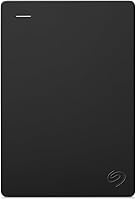
The Seagate Portable 2TB is designed to work with Windows or Mac computers and connects for automatic recognition, with no software required.
Check the backup software's requirements before formatting. If you use the drive for both backups and regular file storage, confirm that the chosen format works with both tasks.
See what size external hard drive you need to estimate capacity for your files. For a Windows 11 process, follow our external-drive backup guide.
Does an external SSD need formatting too?
An external SSD follows the same basic rule: format it only when needed for setup or compatibility. It can arrive ready to use, but the device or operating system may require a different file system.
The Lexar ES3 Portable SSD 1TB includes a Type-C cable and works with compatible laptops, smartphones, cameras, and game consoles. Some devices may limit usable capacity unless they support external storage above 32GB.
Check the requirements for the specific device before formatting. If a phone, camera, or console prompts you to format the SSD, confirm what that will do to existing files and whether the device's format will limit how you can use the drive elsewhere.
How can you avoid losing files when changing a drive's format?
Keep a separate copy of every file you want before formatting. A second copy on another drive or a suitable backup service gives you a way to recover files if the format or setup goes wrong.
Don't keep the only copy of important photos or documents on the drive you're about to erase. Confirm the backup opens and contains the files you expect before proceeding.
When the setup is complete, safely eject the drive before disconnecting it. Our guide to how to safely eject an external hard drive explains the basic process for PC and Mac.
Do you need to format your external hard drive?
If the drive is recognized and works for your intended use, leave its format alone. Format it when setup requires it or when a different file system is needed, after backing up any files you want to keep.
For a Windows or Mac backup drive, check your backup software's file system requirements first. For shared use across devices, confirm each device supports the same format before you erase the drive.
Frequently asked questions
Do external hard drives come preformatted?
Some external hard drives are ready to use when connected, while others may need formatting for your computer or intended use. Check the drive's instructions and your computer's disk utility before changing anything.
If the drive contains files you need, copy them elsewhere before formatting.
Will formatting an external hard drive erase everything?
Formatting can remove access to the files on a drive, so treat it as a data-erasing step. Back up files you need first, and check that you selected the external drive rather than your computer's internal disk.
If you aren't sure which disk is which, stop and confirm before proceeding.
Which format works on both Windows and Mac?
exFAT is often used when a drive needs to move files between current Windows and Mac computers, but check the operating systems and devices you plan to use. Some devices require a different format, and older systems may have limits.
Back up the drive before changing its file system.
Can I use an external hard drive without formatting it?
Yes, if its existing file system works with your computer and the drive is ready to use. Connect it and check whether it appears in your file manager or disk utility.
If it asks to be initialized or formatted, first find out whether the drive has files you need.