How to Tell If an External Hard Drive Is Failing
Repeated errors, missing files, unusual noises, or frequent disconnects can show how to tell if an external hard drive is failing. Stop saving to it, copy readable files, and keep another backup.
On this page (9 sections)
- How to tell if an external hard drive is failing: which signs matter?
- What should you do first if the drive shows warning signs?
- Could the cable, port, or computer be the cause?
- Which symptoms mean you should stop right away?
- Can drive health checks protect your data?
- How do you choose a replacement drive for safer backups?
- How long do external hard drives last?
- What setup and care help prevent backup mistakes?
- Which drive should you pick, and what should you do next?
Repeated errors, missing files, unusual noises, and frequent disconnects can show how to tell if an external hard drive is failing. Stop saving new files, copy what remains readable, and keep a second copy somewhere else.
One slow transfer alone isn't proof of damage. Check the cable and port, but treat repeated problems or several warning signs together as a reason to protect your data promptly.
How to tell if an external hard drive is failing: which signs matter?
Repeated read errors, missing or corrupted files, new clicking noises, and unexplained disconnects are strong warning signs. The drive may also take much longer than usual to open folders or finish a small copy.
Notice whether symptoms repeat after you try a known working cable and a different port. If the same problems continue, stop using the drive for everyday storage and focus on files you can't replace.
A single glitch can come from a loose connection or computer issue. Recurring problems, especially when paired with unusual noises, deserve more caution.
Can slow file access mean an external hard drive is failing?
Repeated slow access can be a warning sign, but a busy computer, poor cable, or large transfer can also cause delays. After checking the connection, compare the drive's behavior during a small copy.
Don't run repeated speed checks or copy large folders to investigate if the drive is also disconnecting or making new noises. That adds activity while you still need to protect the files.
What should you do first if the drive shows warning signs?
Stop saving to it, then copy the most important files that still open to a separate device or backup. Copy a few files at a time if the drive stays stable, and stop if errors, noises, or disconnects worsen.
Don't use the suspect drive as your only copy, even if it becomes readable again. Follow our guide to backing up Windows 11 to an external drive to create a separate copy.
Avoid formatting, initializing, or running repair tools before protecting the data. Those actions can change the drive and complicate recovery if it has a physical problem.
If the files matter and the drive clicks, disconnects repeatedly, or no longer opens, power it down and consider professional data recovery. Recovery isn't guaranteed, so weigh the cost against the value of the files.
Should you keep trying to reconnect it?
Try another cable and USB port once if the drive is quiet and a loose connection seems possible. If it still fails, avoid repeated unplugging and reconnecting.
Don't put a clicking or grinding drive through repeated tests, especially if it disappears during transfers or becomes unreadable. Read more about why an external hard drive clicks.
Could the cable, port, or computer be the cause?
A faulty cable, USB port, hub, or power source can look like drive failure. Connect the drive directly to another port, skip an unpowered hub, and see whether the same issue follows it to another compatible computer.
If the drive needs a power adapter, make sure it is connected securely. Don't substitute an adapter unless its voltage, connector, and other requirements match the drive's instructions.
If the drive works normally with another cable or computer, the connection may be the cause. Keep a backup anyway, since fixing a connection doesn't protect files from a later drive failure.
Which symptoms mean you should stop right away?
Stop using the drive if it repeatedly clicks or grinds, vanishes during transfers, or triggers recurring read errors. These can point to a physical problem that ordinary troubleshooting won't fix.
Don't open the enclosure or strike, shake, or freeze the drive. Be cautious with software that promises to repair any failure, and avoid changing the drive before you have another copy of the files.
If valuable data has no backup, disconnect the drive and ask a reputable recovery service about next steps. Your safest option depends on the symptoms and how much the files matter.
Can drive health checks protect your data?
A health tool can report warnings, but it can't guarantee a drive is safe or predict exactly when it will fail. Copy accessible files before using your computer's built-in tools or the drive maker's utility.
A clean report isn't a backup, and a scan may add activity to a drive that's already unstable. Don't delay a backup just to get a health result.
Make backups automatic once your files are safe, and keep a separate copy of irreplaceable photos. See the safest way to back up photos for options.
How do you choose a replacement drive for safer backups?
Choose by capacity, connection, portability, and how often you'll move files. A portable hard drive suits routine extra storage, while an SSD suits frequent transfers when your computer supports its connection.
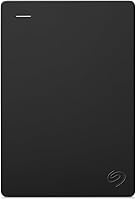
The Seagate Portable 2TB is a straightforward choice for Windows or Mac users who want plug-and-play storage. It comes with an 18 in USB 3.0 cable and needs no software for setup.
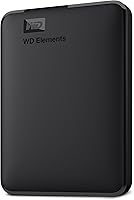
The WD My Passport 2TB suits people who want backup software and password protection in a portable drive. Its device management and backup software requires download and installation, so skip it if you want a drive that needs no added software.
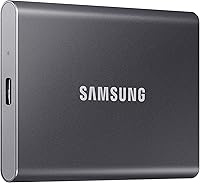
The Samsung T9 Portable SSD suits frequent, large transfers and compatible devices, including iPhone 15 and 16 models. Its maximum stated speed needs a host, cable, and USB 3.2 Gen 2x2 connection with UASP enabled, so it isn't the right fit if your setup can't support that connection or you need more than 1TB.
For more capacities and storage types, compare external storage drives for home computers. Before buying, check that the drive works with your computer and leaves enough space for current files and future backups.
How long do external hard drives last?
No fixed lifespan tells you when every external hard drive will fail. Use, handling, storage conditions, and the individual drive all affect how long it stays dependable.
Don't wait for a warning sign to make your first backup. Our guide to how long external hard drives last explains why age alone can't confirm a drive is safe.
Replace a drive that repeatedly errors or disconnects after you rule out a simple connection issue. Keep the old drive disconnected until you decide whether its files need recovery.
What setup and care help prevent backup mistakes?
Set up a replacement by connecting it directly to your computer, then make and verify a separate copy of your important files. A drive should not hold the only copy of anything you can't replace.
For the Seagate, connect its included cable and let the computer recognize the drive before copying files. For the WD, download and install its backup software if you want to use its backup features and password protection.
Before a large backup, check that the drive has enough room and is compatible with your computer. Don't unplug it during a transfer; use your computer's safe eject option when you're done.
A common mistake is to move files onto the new drive and delete the originals immediately. Keep the original files until you confirm the new copies open, and keep another backup on a separate device or trusted service.
Which drive should you pick, and what should you do next?
Pick the Seagate for simple extra storage, the WD if you want its backup software and password protection, or the Samsung SSD for frequent transfers on a compatible setup. If your current drive shows repeated failures, protect readable files before shopping.
Then keep two separate copies of important files and follow our Windows backup steps. Knowing how to tell if an external hard drive is failing matters most when you act on the first repeated warning, before the only copy is gone.
Frequently asked questions
How can I tell if an external hard drive is failing?
Repeated read or write errors, files that disappear or become corrupted, unusually slow access, new clicking, and frequent disconnects can point to a failing drive. Check the cable and port once, then copy important files if the drive remains readable.
One symptom alone doesn't confirm a drive failure.
Should I keep using an external hard drive that is making noise?
Stop using it for routine tasks if it makes new or repeated clicking, grinding, or scraping sounds, especially when files are also missing or access fails. Disconnect it safely if possible, avoid repeated power cycles, and seek professional recovery help if the files matter and aren't backed up.
Can a failing external hard drive be repaired?
Sometimes the issue is a cable, port, power source, or file system problem rather than a failed drive. If the drive itself is damaged, repair may not restore the data.
Stop writing to it, check simple connections once, and consider data recovery before attempting repairs or formatting.
What should I do first if my external drive is failing?
Stop saving new files to the drive and make another copy of the most important readable files to a separate device or trusted backup. Don't format it or run repair tools before securing the data, since those actions can complicate recovery if the drive is physically failing.