How to Back Up Windows 11 to an External Drive
To learn how to back up Windows 11 to an external drive, connect a drive and use File History for personal files. Use Windows' system image option for broader recovery, and keep a second copy of irreplaceable files.
On this page (10 sections)
- How do you back up Windows 11 to an external drive with File History?
- What files should you back up first?
- Can you create a full Windows 11 backup on an external drive?
- How do you choose an external drive for Windows backups?
- How do you set up a new drive for Windows backups?
- How can you check that the backup worked?
- How often should you back up Windows 11?
- What mistakes can make a Windows backup less useful?
- How do you safely disconnect a backup drive?
- Which Windows 11 backup plan should you choose?
To learn how to back up Windows 11 to an external drive, connect a drive and use File History for personal files, or create a system image for broader recovery. Keep a separate copy of important files, since one drive can fail or become unavailable.
File History saves versions of files in selected folders. A system image aims to capture Windows and more of the computer's setup, so choose the method based on what you may need to restore.
How do you back up Windows 11 to an external drive with File History?
Use File History to save personal files to a connected external drive. It can back up files in libraries such as Documents, Pictures, Videos, and Music, plus offline files stored in OneDrive.
- Connect the external drive and confirm Windows can open it.
- Open Control Panel and search for File History.
- Select Save backup copies of your files with File History.
- Choose the external drive, then turn File History on.
- Open Advanced settings to set how often copies are saved and how long versions are kept.
The exact screens can vary as Windows updates. If File History doesn't show the drive, check that it appears in File Explorer, reconnect it, and consult Microsoft's File History instructions.
File History helps recover an earlier version of a document or restore files after a mistake. It doesn't replace a full Windows recovery plan, so decide separately how you'll recover the operating system and installed apps.
What files should you back up first?
Start with files you cannot easily recreate, such as work documents, personal photos, videos, and project folders. Add folders you use often, then confirm the backup includes them.
File History focuses on selected folders and libraries. If a folder is outside those locations, add it to a library or make a separate copy you can verify.
For a photo-focused plan, see the best way to back up photos. Estimate how much space your files need with our guide to choosing an external hard drive size.
Can you create a full Windows 11 backup on an external drive?
A system image can capture Windows and more of the computer for recovery, but it differs from File History and may not be available in every Windows setup. Search Control Panel for Backup and Restore (Windows 7), then look for the option to create a system image.
Follow the prompts and choose the external drive as the destination if Windows offers it. Keep the drive connected until the process finishes, and follow Microsoft's recovery instructions if you need to restore the image.
A system image can use substantial space, so check the drive's free capacity first. It also doesn't replace a separate copy of files that change often, since a newer file copy may be easier to restore.
How do you choose an external drive for Windows backups?
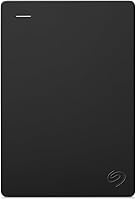
Choose a drive with more free space than the files you plan to protect, plus room for older versions or a system image. A portable hard drive suits a larger collection, while a smaller drive may fit a focused set of documents.
The WD Elements Portable 5TB is a portable hard drive with USB connectivity and plug-and-play expandability. Choose it if you want room for a large file collection or backup history; skip it if you only need to protect a small set of files and prefer a smaller capacity.
The Toshiba Canvio Basics 2TB is pre-formatted NTFS for Windows PCs and connects over USB. It suits a focused backup set; skip it if your files and history need more than 2TB or you want a solid-state drive.
The SSK Portable SSD 1TB includes USB-C and USB-A cables and supports PCs. Choose it for a compact drive holding selected files that you may carry; skip it if you need more than 1TB for your backup history.
Compare more options in our guide to external hard drives for a Windows PC. If you want one copy away from your home or computer, weigh external hard drive versus cloud storage.
How do you set up a new drive for Windows backups?
Connect the drive, check that Windows recognizes it, and confirm its format and free space before starting a backup. The Toshiba comes pre-formatted NTFS for Windows PCs, while the SSK SSD ships in exFAT format.
Windows backups may need a different format or more space depending on the method. Check the requirements before reformatting, because formatting can erase files already on the drive; copy anything important elsewhere first.
Use a direct USB connection when practical, and keep the drive connected while a backup runs. For a portable drive, place it on a stable surface and avoid moving it during file transfers.
How can you check that the backup worked?
Confirm that expected files or backup folders are present on the external drive. For File History, use the restore interface to browse saved versions, then restore a test file to a separate location.
Don't overwrite your only copy during a test. Check after the first run and again whenever you add folders or change the backup drive.
A successful run may not include folders you expected. Review File History settings and confirm each important location is covered before counting on the drive.
How often should you back up Windows 11?
Back up as often as your files change. Daily or more frequent copies can reduce lost work, while a less frequent schedule may suit files that rarely change.
File History's advanced settings let you adjust backup frequency and retention. Keep the external drive connected when scheduled copies need to run, then eject it safely before disconnecting.
For long-term storage, read how to choose an external hard drive for long-term backup. A separate cloud copy can help if the drive is lost, damaged, or affected by the same event as your PC.
What mistakes can make a Windows backup less useful?
The most common mistake is assuming the backup covers every file and every kind of recovery. File History saves selected personal files, while a system image serves a broader recovery purpose.
Check that your important folders are included, that the drive has enough free space, and that the backup finishes before unplugging it. Don't store the only copy of irreplaceable files on one external drive.
A backup that stays connected all the time can be exposed to some of the same problems as the computer. Disconnect it between scheduled backups when practical, and keep another copy somewhere separate.
How do you safely disconnect a backup drive?
Use Windows' Safely Remove Hardware option before unplugging the drive. Wait for Windows to confirm it is safe, especially if a backup or file transfer may still be running.
Avoid unplugging during a backup. If Windows says the drive is in use, close open files and backup windows, then try the eject option again.
Which Windows 11 backup plan should you choose?
Use File History for everyday personal files, and choose a drive size that leaves room for older versions. Pick the WD Elements if you need a large archive, the Toshiba for a focused Windows file backup, or the SSK SSD for selected files in a compact drive.
Use a system image when broader recovery matters, and keep another copy of irreplaceable files separately. For a practical plan for how to back up Windows 11 to an external drive, start with the folders you cannot replace, run the first backup, then verify that you can find and restore a file.
Frequently asked questions
Can Windows 11 back up to an external hard drive?
Yes. Windows 11 can use File History with a connected external drive to save versions of files in selected folders.
You can also create a system image with the legacy Backup and Restore tool on supported systems.
Check Microsoft's current guidance and your PC's options before relying on a recovery method.
How large should an external drive be for a Windows 11 backup?
Choose a drive with more free space than the files or system image you plan to save, and leave room for older file versions if you use File History. A larger drive can keep more history, but the right size depends on your used storage and backup schedule.
Does File History back up Windows and installed apps?
File History is for personal files in selected libraries and folders. It isn't a full copy of Windows and installed programs.
For broader recovery, check Windows' Backup and Restore options or your computer maker's recovery instructions.
Keep a separate copy of important documents.
Should I leave my backup drive connected?
A drive can stay connected while scheduled backups run, but disconnecting it between backups can reduce exposure to accidental deletion, malware, or power problems. Eject it safely before unplugging, and keep another copy of irreplaceable files somewhere separate.