External Hard Drive vs Cloud Storage: Which Is Better? (October 2026)
Choose an external hard drive for offline access and local capacity; choose cloud storage for access across devices and an off-site copy. For files you cannot replace, combine both.
On this page (7 sections)
- External hard drive vs cloud storage: which should you choose?
- When does an external hard drive make more sense?
- When is cloud storage the better fit?
- How should you set up and care for an external drive?
- How do you avoid losing files with either method?
- What does each option cost over time?
- Which storage plan fits your routine?
External hard drive vs cloud storage comes down to where you need your files and how you want to protect them. Choose a drive for offline access and local capacity, cloud storage for access across devices and an off-site copy, or both for files you cannot replace.
A drive connects to a computer when you need it. Cloud storage keeps files with an online service, usually syncing them across devices through an account and internet connection.
The two options solve different problems. A local drive can make a restore convenient, while an off-site copy can help if your home computer and backup drive are lost or damaged together.
External hard drive vs cloud storage: which should you choose?
Pick an external hard drive for offline access and a large local library; pick cloud storage for remote access and off-site protection. Your internet connection, file size and backup habits matter as much as the storage method.
An external drive is a physical device you connect by USB. Once files are copied to it, you can access that copy without internet, provided you have a compatible device and cable.
Cloud storage keeps files on a provider's servers. You can usually reach them from more than one device, but access and syncing depend on the service, your account and an internet connection.
| Need | External hard drive | Cloud storage |
|---|---|---|
| Access without internet | Yes, for files saved on the drive | Only files available offline |
| Access from multiple places | Carry the drive and connect it | Sign in from supported devices |
| Off-site copy | Only if stored somewhere else | Usually stored away from your home |
| Ongoing cost | Usually a one-time device purchase | Often a recurring plan for paid storage |
| Main risks | Loss, damage, drive failure or an outdated backup | Account access, service limits, internet and sync mistakes |
These are general differences, not guarantees about a specific cloud provider or drive. Review the service's storage, recovery and privacy terms, and keep more than one copy of files that matter.
What does external hard drive vs cloud storage mean for backup?
An external drive gives you a separate local copy; cloud backup gives you a copy away from your home. Neither helps if the copy is incomplete or out of date.
A drive sitting beside your computer may be exposed to the same theft, fire or other local event. Disconnect it after a backup and store it separately to reduce that shared risk.
Cloud sync can make a file available across devices, but syncing is not always the same as keeping a recoverable backup. If a file is deleted or changed, that change may sync too, so check whether the service offers version history or recovery.
When does an external hard drive make more sense?
Choose an external hard drive when you want offline access, predictable local capacity or a place to keep large files. It suits photo archives, video projects and computer backups that you don't need to open from everywhere.
A local drive works well for a person who can connect it regularly and keep it in a safe, separate place. It's also useful when internet access is slow, limited or unavailable during the times you need your files.
Skip a drive as your only backup if it will stay connected beside your computer all the time, or if you need to reach the files from several locations. A single drive can fail, be lost or share the same risks as the computer it backs up.
The upfront cost is tied to the drive you choose, rather than a monthly storage plan. Allow room for growth, and remember that a second copy or a replacement drive may add to the long-term cost.
Is a drive better for large photo or video libraries?
A drive can be simpler for a large library you mainly use at home. Moving many large files through an internet connection can take time, and a cloud plan may need enough capacity for the full collection.
Check the size of your existing library and leave room for new files. Our guide on choosing an external drive size can help you estimate capacity for backups, photos and other files.
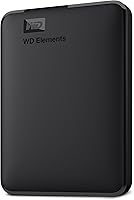
For a plain local copy, the WD Elements Portable 2TB offers USB connectivity and plug-and-play expandability. {{product B06W55K9N6 | A 2 TB USB drive for keeping a local copy of documents, photos and other files.}}
If you want more room in a portable drive, WD My Passport 4TB has password protection and hardware encryption. {{product B07VTW2LPX | A 4 TB option for carrying a larger file library and keeping it on a USB drive.}}
Neither drive creates an off-site copy by itself. Keep another copy somewhere separate if losing the drive would put your only backup at risk.
What if I need fast access to files on the go?
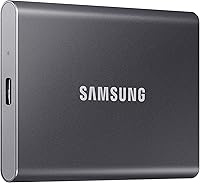
A portable SSD suits active files you move between compatible devices. The Samsung T7 Shield has a stated read speed of up to 1,050 MB/s when the host and connection support its maximum speed.
It has 1 TB of capacity, USB 3.2 Gen 2 connectivity and compatibility with PC, Mac, Android devices and gaming consoles. Samsung also gives it an IP65 rating for water and dust resistance, with drop resistance tested up to 9.8 feet under controlled conditions.
Choose this kind of drive for files you carry and open locally. Skip it if your main need is remote access while the drive is somewhere else.
Fast local transfers don't provide remote access. If you're away from the drive, cloud storage or another copy at your destination may be more convenient.
When is cloud storage the better fit?
Choose cloud storage when you need files across devices or want a copy stored away from your home. It can also help when you don't want to carry a physical drive.
Cloud storage suits people who regularly switch between a laptop, phone and desktop, or who need to share folders with other people. A shared folder can make collaboration easier, depending on the service's tools and permissions.
Skip cloud storage as your only answer if you often work without internet, have a very large library that would be slow or costly to upload, or don't want to maintain an online account. You also need to understand how account recovery and file restoration work.
Check service limits before committing. Look at storage capacity, upload limits, version recovery, account security and what happens if you stop paying for a plan.
Can cloud storage replace a computer backup?
Cloud storage can protect selected folders, but confirm that it backs up everything you need. A sync folder may not include system settings, installed programs or files saved elsewhere on your computer.
Decide what you need to restore: individual documents, a photo library or a full computer setup. Then check whether the service supports that kind of backup and how long it retains deleted or changed files.
For a Windows 11 local copy, follow our guide to backing up Windows 11 to an external drive. You can use cloud storage alongside that process for a separate off-site copy of your most important folders.
What should I check before trusting a cloud service?
Check the provider's storage limit, recovery options, privacy terms and account protections before uploading your only copy. A convenient sync service is useful only if you can retrieve the files when needed.
Use a strong, unique password and turn on available multi-factor protection. Keep recovery details current so a lost phone or password doesn't lock you out of files you need.
For sensitive files, review how the service handles encryption and sharing. Limit shared access, review connected devices and keep account recovery methods secure.
How should you set up and care for an external drive?
Connect the drive, choose a backup method, run a first copy, then verify files before relying on it. Keep a recurring schedule and store the disconnected drive away from the computer.
Before copying, check that the drive has enough free capacity and that its format works with your computer and intended devices. A drive may need formatting before use, and formatting erases its current contents, so check what is on it first.
Use the computer's backup tool or a trusted backup application to select the folders you need. A one-time drag-and-drop copy is useful for moving files, but it won't automatically keep later changes in sync.
After the first backup, open several files from the drive and confirm they work. Eject the drive safely before unplugging it, and avoid moving it while files are transferring.
Mechanical drives need gentle handling because they contain moving parts. Keep any drive away from liquids and extreme heat, and don't make it the only place where an important file exists.
For sensitive files, use the drive's available security tools and store it where others cannot easily access it. The WD My Passport 4TB includes password protection and hardware encryption, but a strong password and another backup still matter.
How do you avoid losing files with either method?
Keep at least 2 copies of important files, and store one copy separately from the device you use each day. A backup only helps when it's current and you can restore it.
A practical setup is to keep working files on your computer, make a local backup to an external drive, and save critical folders to cloud storage. If you use both, confirm that the cloud copy includes the folders that matter and that the drive backup runs on a schedule.
Test a restore by opening a few copied files or restoring a small folder to a safe location. This checks that the copy is readable and that you know where to find it.
Our guide to the best way to back up photos covers ways to keep image files in more than one place. For larger collections, check that the backup has enough capacity before starting.
Common mistakes are easy to prevent: assuming a sync folder is a full backup, leaving the only drive connected, forgetting to include a folder, and never checking whether the backup completed. Set reminders or automatic schedules, then check the result from time to time.
What does each option cost over time?
An external drive usually has a one-time hardware cost, while cloud storage may charge repeatedly for capacity. Compare the amount of storage you need and the time you can spend maintaining backups.
A drive's cost doesn't include another drive for redundancy, secure storage or a replacement if it fails. Cloud plans can add up over several years, and you may need a larger plan as your library grows.
If you already pay for a cloud service, check how much space remains before adding another plan. If you already own a suitable drive, check its free space and whether you can keep it disconnected and stored safely.
Which storage plan fits your routine?
Choose a drive if you'll connect it regularly and store it separately; choose cloud storage if you need remote access and can maintain the account. For important files, use both when you want a local restore option and protection from a local event.
Pick an external hard drive for a large offline library, limited internet or a straightforward local backup. Pick cloud storage for multi-device access, sharing and an off-site copy.
For a fuller home setup, compare an external drive with a network attached storage device. If you want a general backup approach, SSD vs HDD for backup can help you weigh the drive types.
The safest external hard drive vs cloud storage plan is the one you can keep current. Choose a schedule, confirm backups finish and occasionally restore a file to check that it opens.
Frequently asked questions
Is an external hard drive better than cloud storage?
An external hard drive suits offline access and local storage without a recurring storage plan. Cloud storage suits access from different devices and keeping a copy away from home.
For important files, use both so a single local event or account problem doesn't affect every copy.
Can I use an external hard drive and cloud storage together?
Yes. Keep your working files on your computer, make a local copy on an external drive, and sync or back up key folders to cloud storage.
This gives you a nearby copy for restores and an off-site copy if your computer and drive are lost or damaged together.
Does cloud storage work without internet?
Files already downloaded or marked for offline use may remain available without internet, depending on the service and device settings. Files kept only online need a connection.
Check offline options before travel, and keep a separate local copy of files you must reach reliably.
How often should I back up to an external drive?
Back up whenever you create or change files you can't afford to lose. A weekly schedule may suit changing documents, while active photo or video work may need a copy each day.
Connect the drive, run the backup, confirm it completed, then safely eject and store the drive separately.
Is cloud storage safer than an external hard drive?
Neither is automatically safer in every situation. Cloud storage keeps files away from local theft or damage, but account access and service availability matter.
An external drive works without internet, but can be lost, damaged or affected by the same event as your computer.
Protect accounts and keep separate copies.