How to Safely Eject an External Hard Drive on a PC or Mac
To learn how to safely eject an external hard drive, finish transfers, close files and apps using it, then choose Eject in Windows or macOS. Wait for confirmation before unplugging.
On this page (9 sections)
- How do you safely eject an external hard drive on Windows?
- How do you safely eject an external hard drive on a Mac?
- What should you do if Windows or Mac says the drive is in use?
- Is it safe to unplug a drive after shutdown?
- Does every external drive need the same eject steps?
- How should you choose a drive you can use safely?
- How do you set up and care for an external drive?
- What mistakes can damage files during ejection?
- What is the safest way to eject an external hard drive?
To learn how to safely eject an external hard drive, finish file transfers, close anything using the drive, and choose Eject in Windows or macOS. Wait for the drive to disappear or for a safe-to-remove message before unplugging it.
Ejecting gives the computer a chance to finish writing data and release the drive. Unplugging during a copy or save can interrupt that work, leaving a file incomplete or causing errors.
How do you safely eject an external hard drive on Windows?
Use File Explorer's Eject command or Safely Remove Hardware, then wait for confirmation. Close open files and apps that may be reading from or writing to the drive first.
In File Explorer, select This PC, find the drive under Devices and drives, right-click it, and choose Eject. Depending on your Windows version and device, you can also select the Safely Remove Hardware icon in the taskbar and choose the drive there.
Wait for a message that it's safe to remove the device, or check that the drive no longer appears in File Explorer. Then disconnect the cable.
For a scheduled backup, let the backup program finish or pause it before ejecting. The steps in our guide to backing up Windows 11 to an external drive include checking that the backup completed.
How to safely eject an external hard drive after a backup
Treat the backup software's completion message as a cue to eject, not as permission to pull the cable. Close any files you opened from the drive, then use Windows' normal eject control.
If Windows reports that the drive is busy, check whether another backup, sync, or file copy is still running. Let it finish and retry.
For important files, keep another copy elsewhere and confirm the backup contains what you need before storing the drive.
How do you safely eject an external hard drive on a Mac?
Click the drive's Eject icon in Finder, or drag its desktop icon to the Trash. Wait until the drive disappears from Finder or the desktop before unplugging it.
You can also select the drive in Finder's sidebar and click the Eject symbol beside its name. If you don't see the sidebar, open Finder settings and enable external disks in the sidebar options.
A drive may not eject if a document is open from it, a copy is still running, or an app is accessing one of its files. Close the document or app and try again.
Check drive formatting before using a Windows-oriented drive with a Mac. The Toshiba Canvio Basics 2TB is pre-formatted for Windows PCs and requires reformatting for Mac computers, which erases existing files.
Copy anything you need elsewhere before reformatting.
How to safely eject an external hard drive when macOS is busy
Close the app using the drive and retry Finder's Eject command. A preview window, open document, or active transfer can keep a volume in use.
Check Finder windows and apps that may have files open, then save changes and close them. If the drive still won't eject, wait for activity to end or shut down the Mac fully before disconnecting it.
What should you do if Windows or Mac says the drive is in use?
Close files and apps that may be using the drive, then try ejecting again. A busy drive could be copying data, saving a file, or scanning its contents in the background.
Common causes include a file still open in a document, photo, or video app; a file transfer, backup, or sync in progress; a terminal window or file manager open to a folder on the drive; or an app scanning its contents.
Save any changes, close the relevant apps and windows, and give pending activity time to finish. Then try the eject command again.
Don't unplug the drive just because the warning stays on screen. If you can't find what is using it, shutting down the computer fully is a safer next step than pulling the cable while the computer is running.
How to safely eject an external hard drive that will not release
Stop new activity, close likely users, and give the computer time to release the drive. If the warning remains, restart or shut down normally and disconnect only after the computer is fully off.
Avoid repeatedly unplugging and reconnecting the drive to clear the warning. If ejection problems happen often alongside missing files or errors, check how to tell if an external hard drive is failing.
Clicking sounds can also be a reason to stop using the drive and read why an external hard drive may click.
Is it safe to unplug a drive after shutdown?
Yes, after the computer has fully shut down and activity has stopped. Save open work and use the normal shutdown command instead of cutting power or removing the cable mid-task.
Check that the computer is off, not sleeping or restarting. If the drive has its own power supply, follow its instructions before switching it off.
Shutdown is also an option when a drive refuses to eject and you can't identify the app keeping it busy. Shut down completely, wait for the computer to turn off, and then disconnect the drive.
Does every external drive need the same eject steps?
Use the eject control for your operating system whether the drive is an HDD or SSD. Windows uses File Explorer or Safely Remove Hardware; macOS uses Finder.
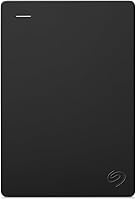
A portable HDD may make sounds or have a light that changes during activity, but those signs don't replace the computer's eject command. The Seagate Portable 1TB is designed for Windows or Mac computers, though reformatting may be required for Mac.
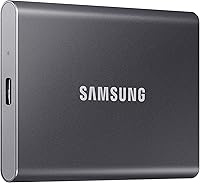
An external SSD also needs a safe eject before you disconnect it. The SSK Portable SSD 500GB instructions say to use Safely Remove Hardware on Windows or Eject on macOS, and not to unplug it during transfers.
How should you choose a drive you can use safely?
Choose based on capacity, computer compatibility, and the files you handle. Ejection steps are similar across drives, but the right format and connection make daily use simpler.
The Seagate Portable 1TB suits someone who wants a compact drive for general files and a setup process that begins by connecting it to a computer. It is designed for Windows and Mac, but Mac users may need to reformat it.
Pick it when 1TB is enough; skip it if you need more room or want a solid-state drive.
The Toshiba Canvio Basics 2TB fits a Windows user who wants more storage and no separate AC power cord. Its NTFS format is ready for Windows, while Mac use requires reformatting.
Choose it for a larger file collection; skip it if you want a drive ready for Mac without changing its format.
The SSK Portable SSD 500GB suits people who move files between compatible USB-C and USB-A devices, including smartphones and tablets. Its solid-state design and included cables make it a portable option, but 500GB may be limiting for large archives.
Choose it for quicker transfers and device flexibility; skip it if capacity matters more than speed.
For a broader comparison of drive types, see external SSDs for everyday storage. If you need to decide how much room to buy, use our guide to choosing an external hard drive size.
How do you set up and care for an external drive?
Connect the drive to a compatible port, confirm the computer recognizes it, and check its format before copying important files. Keep the cable secure and avoid moving a mechanical HDD while it is working.
The Seagate Portable is recognized automatically when connected to a computer, and the Toshiba Canvio Basics is plug and play for Windows. The SSK drive ships in exFAT format for broad plug-and-play use.
If a drive asks to be formatted, pause and check for files first because formatting erases data.
After copying files, open a few from the drive to confirm they work. Keep a second copy of important documents and photos on another drive or in cloud storage.
When the backup is complete, close files and eject before putting the drive away.
A portable drive is easy to carry, but protect it from drops, cable strain, and moisture. Store it in a dry place and avoid disconnecting it during a transfer, backup, or computer update.
What mistakes can damage files during ejection?
The main avoidable mistake is unplugging while data is being written. A transfer window closing does not always mean every app has released the drive.
Wait for a copy or backup to report completion, close files opened from the drive, and use the operating system's eject command. Don't rely only on an activity light or a quiet disk, since background apps may still be using it.
Also avoid formatting a drive before checking its contents, assuming every drive is ready for both Windows and Mac, or treating one external drive as the only copy of important files. A little setup and a consistent eject habit reduce the chance of interrupted writes.
What is the safest way to eject an external hard drive?
Finish the work, close apps using the drive, choose Eject, and wait for confirmation before disconnecting it. On Windows, use File Explorer or Safely Remove Hardware; on Mac, use Finder's Eject control.
If the drive won't eject, stop active transfers, close files and apps, and try again. If the system still won't release it, shut down fully before unplugging.
Pick a portable HDD for more space at a simple setup, or choose the SSK SSD for a smaller capacity and broad device connections. For long-term storage, read how long external hard drives last and keep a second copy of files that matter.
Frequently asked questions
How do I safely eject an external hard drive on Windows?
Finish file transfers and close files and apps that use the drive. In File Explorer, open This PC, right-click the drive, and choose Eject, or use Safely Remove Hardware in the taskbar.
Wait for Windows to say it is safe to remove the device or for the drive to disappear before unplugging it.
If Windows says the drive is in use, close apps and try again.
How do I safely eject an external hard drive on a Mac?
Finish transfers and close files on the drive. Click its Eject icon in Finder, select the drive in Finder's sidebar and click Eject, or drag its desktop icon to the Trash, which becomes an eject symbol.
Wait for the drive to disappear from Finder or the desktop before disconnecting it.
If macOS says it's in use, close the app using it and retry.
What if my external hard drive won't eject?
Wait for transfers to finish, save and close documents on the drive, and quit apps that may be using its files. Try ejecting again from File Explorer or Finder.
If the system still reports activity, give it time or shut down the computer fully before unplugging the drive.
Can I unplug an external hard drive while my computer is off?
Yes, once the computer has fully shut down, you can disconnect the drive. Save your work and close files first.
Use the system's normal shutdown command and wait for the computer to turn off.
Don't unplug during a restart, update, backup, or other activity that may still be writing to the drive.