Can I Boot From an External SSD?
Yes, you can boot from an external SSD on most modern PCs and on Intel-based Macs. The BIOS or firmware must support USB booting, and the drive needs to hold a full operating system, not just files.
On this page (11 sections)
- Can I boot from an external SSD on a Windows PC?
- Can you boot a Mac from an external SSD?
- What hardware do you need for a bootable external SSD?
- Does the external SSD need special features to boot?
- Which external SSD should you use as a boot drive?
- How do you set up an external SSD as a boot drive?
- Why won't my PC boot from the external SSD?
- Is booting from an external SSD slower or faster than an internal drive?
- What are the risks of running a system from an external SSD?
- Do you need an external SSD for an iPhone instead?
- So, can you boot from an external SSD?
Yes, you can boot from an external SSD on most modern PCs and on Intel-based Macs. The firmware has to allow USB booting, and the drive has to carry a full operating system, so a plain storage drive won't do the job on its own.
The idea is simple: the computer starts from the operating system on the external drive instead of its internal disk. If your machine supports it, you get a second, portable system you can carry between computers.
This guide covers what works, what blocks it, and which drives suit the job.
Can I boot from an external SSD on a Windows PC?
On most Windows PCs built in the last decade, yes. The BIOS or UEFI settings need a USB boot option, and many laptops and desktops list it by default.
The catch is that Windows doesn't install to a USB drive through its normal setup. You need a tool that prepares the drive as bootable, or a cloning app that copies an existing Windows install onto the SSD.
Turn on the PC and open the boot menu, usually a key like F12 or Esc during startup. If the external SSD appears in the list, the hardware path is open.
If it doesn't, the firmware is blocking it before Windows ever gets involved.
Once Windows runs from the external drive, expect the first startup to take longer than later ones. After that, the system loads from the SSD at USB speed.
Can you boot a Mac from an external SSD?
Intel Macs can boot from an external SSD, and it's a common way to keep a second system or test a macOS install. Apple Silicon Macs are the exception: they won't start from an external drive the way Intel models do.
On an Intel Mac, plug in the drive, restart while holding the Option key, and choose the external volume in the startup manager. macOS needs to be installed on that drive first, usually through a bootable installer.
The process is less fiddly than on Windows because macOS handles external startup natively. The drive still needs a full system, and the connection should be USB 3 or Thunderbolt for usable speed.
If you mainly want portable storage rather than a second system, our roundup of the best external SSDs covers the everyday options.
What hardware do you need for a bootable external SSD?
You need a USB SSD with a fast connection and a stable cable, plus a computer whose firmware allows USB booting. Speed matters most because the system reads from the drive constantly while it runs.
Look for USB 3.2 Gen 2 rather than an older USB 3.0 enclosure. The port on the computer has to match; a fast drive in a slow port runs at the slow port's ceiling.
Capacity is the other piece. A Windows install plus updates and a few programs takes serious space, so 1TB is a comfortable starting point and 2TB leaves room to spare.
A drive that stays plugged in can get knocked, so a rugged body is a practical bonus. Our guide to what to look for in an external SSD explains the specs that matter for this kind of use.
Does the external SSD need special features to boot?
No, the drive doesn't need a boot mode or a special partition scheme beyond what the operating system requires. Any reliable USB SSD can hold a bootable system if it's prepared correctly.
What helps is consistent speed. A drive rated up to 1,050 MB/s read keeps startup and app loading close to internal SSD feel, while a slow budget drive makes the external system feel sluggish.
Hardware encryption is a nice extra if the drive travels, since a lost boot drive can expose everything on it. Check that the encryption doesn't interfere with your install method before you rely on it.
Which external SSD should you use as a boot drive?
For most people, a fast USB 3.2 Gen 2 drive with a durable body is the right pick. Here are three that fit the job.
The Samsung T7 Shield Portable SSD 1TB reads up to 1,050 MB/s and writes up to 1,000 MB/s. Samsung gives it an IP65 rating for water and dust and drop protection up to 9.8 feet, which suits a drive that moves between desks and bags.
It works with PC, Mac, Android devices and consoles.
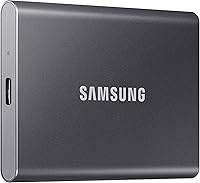
The Samsung T7 Portable SSD 1TB reaches the same read and write speeds in a thinner shell. Its aluminum unibody adds shock resistance, and it ships with USB Type C-to-C and Type C-to-A cables, which helps when the target computer has an older port.
The SanDisk Extreme Portable SSD 2TB in the box above is the capacity choice. It gives you more room for a Windows install, updates and programs, with IP65 water and dust resistance and password protection.
How do you set up an external SSD as a boot drive?
The short version: prepare the drive, install or clone the system, then change the boot order. The exact steps depend on your operating system and your PC's firmware.
On Windows, a cloning tool copies your current install to the SSD, or a media creation tool builds a fresh installer on it. On a Mac, a bootable installer plus a normal install on the external volume does the job.
After the drive is ready, restart and open the firmware or startup manager. Select the external drive, and if it starts, you're done for now.
The first boot on a new system asks for setup details again, such as a user account and network. Treat it like a fresh computer and keep the internal drive untouched until you're sure the external system works.
Why won't my PC boot from the external SSD?
If the drive doesn't appear at startup, the problem is usually one of four things: USB boot is disabled, the drive isn't bootable, the port or cable is failing, or the firmware only allows it with Secure Boot off.
Start with the boot menu and check whether the drive is listed at all. If it's missing, try another USB port, preferably one on the machine itself rather than a hub.
Then confirm the drive actually holds a bootable system by testing it on another computer.
Secure Boot and fast startup settings can block external devices on some machines. Changing them is a firmware job, and the settings differ by brand.
If the drive shows up but the system won't load, the install itself is likely incomplete. Rebuild it with a known-good tool rather than guessing at missing files.
Is booting from an external SSD slower or faster than an internal drive?
It depends on what the internal drive is. Against a spinning hard drive, an external USB 3.2 Gen 2 SSD is clearly faster; against a recent internal NVMe SSD, it's usually a little slower.
The USB link adds overhead that an internal drive doesn't have. In everyday use, that shows up most during heavy file work, not during startup or browsing.
If your laptop has an older hard drive and you don't want to open it up, an external boot SSD is a sensible shortcut to a faster machine. Our guide to how to use an external SSD with your laptop covers everyday setup and care.
What are the risks of running a system from an external SSD?
The main risks are an accidental unplug, a dropped drive, and forgetting which system you're in. A cable knock during use can freeze the machine and, in the worst case, corrupt files.
Keep the drive on the desk rather than dangling from the port, and use the cable the drive ships with. A rugged body helps with drops but doesn't protect against a sudden disconnection.
Back up the external system the same way you'd back up an internal one. A second drive, cloud storage or a scheduled image all work.
Also remember which system you booted. Saving work to the wrong drive is easy when two systems look identical, so check the drive name in the file manager before big projects.
Do you need an external SSD for an iPhone instead?
The boot question doesn't apply to iPhones, but external SSDs still have a place there. An iPhone can record ProRes video straight to a connected SSD, which saves internal space on long shoots.
The Samsung T7 Shield supports iPhone 15 Pro Res 4K at 60fps video, and Samsung recommends the included cable for it. That's a storage job rather than a startup one.
If that's your goal, see our guide to the external SSD for iPhone to match a drive to your model.
So, can you boot from an external SSD?
Yes for most modern PCs and Intel Macs, and no for Apple Silicon Macs starting macOS. Check the firmware first, prepare a full bootable system, then switch the boot order.
If the drive appears in the boot menu, the rest is setup work.
For a boot drive, we would pick the Samsung T7 Shield Portable SSD 1TB for its 1,050 MB/s read speed and rugged IP65 body. Choose the SanDisk Extreme Portable SSD 2TB if you need the extra room for a large system.
Before you start, back up the internal drive and leave yourself an easy way back. Once the external system runs, keep the drive cabled and on a flat surface, and treat it like any other computer you depend on.
Frequently asked questions
Will an external SSD boot faster than the internal hard drive?
Yes, if the internal drive is a spinning hard drive and the connection is USB 3.2 Gen 2. The drive's read and write speeds, the USB port and the computer's firmware all affect how much quicker startup and app loading feel.
Do I need a special external SSD to boot from it?
No special boot drive is required, but a USB 3.2 Gen 2 SSD with a steady connection makes the biggest difference. A rugged drive with drop and water resistance is a sensible pick if the drive travels between machines.
What happens to my internal drive when I boot from an external SSD?
Nothing is erased automatically. The internal drive stays in the computer, and you can still reach its files from the external operating system.
Keep a backup before you change boot settings, and switch the boot order back if you want to return to the internal drive.