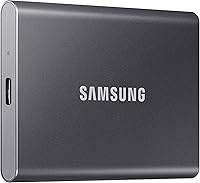
How to Choose an External SSD
Choose an external SSD by matching four things to your device and your files: connection (USB-C or USB 3.2), speed tier, capacity and durability. A 1TB USB 3.2 Gen 2 drive like the Samsung T7 Shield covers most everyday needs, and a USB 3.2 Gen 2x2 model like the T9 is the faster pick for large video projects.
On this page (9 sections)
- What should you check first when you choose an external SSD?
- Which speed tier fits your files?
- How much capacity should you buy?
- Which durability features are worth paying for?
- Does the drive work with your laptop, phone or console?
- Should you pick USB-C or USB-A?
- Which drive fits each kind of buyer?
- How do you set up and care for the drive?
- What should you do next to choose your drive?
You choose an external SSD by matching the connection, speed, capacity and durability to the device you'll plug it into. Get those four right and the drive feels instant; get them wrong and you either overspend or bottleneck your own laptop.
Start with the port on your computer or phone. Then decide how much space you need and how rough the drive's life will be.
Software extras and color are a finishing touch.
This guide walks through each decision in order. If you'd rather skip straight to vetted picks, the best external SSDs for everyday storage roundup ranks them by use.
What should you check first when you choose an external SSD?
Check the connection your device offers before anything else. The port decides how fast the drive can run, and a faster drive plugged into a slower port just runs at the port's speed.
Look at your laptop, desktop, phone or console and note the USB version and the plug shape. Most modern laptops and the iPhone 15 and 16 families use USB-C.
Older computers may rely on USB-A, which needs an adapter or a different cable.
The drive's own interface matters too. A USB 3.2 Gen 2 drive tops out around 1,050 MB/s in the maker's figures.
A USB 3.2 Gen 2x2 drive doubles that on paper, but only when the host device supports 2x2.
That last point trips up many buyers. A laptop with plain USB 3.2 Gen 2 will run a Gen 2x2 SSD at the lower speed.
You still get a good drive, just not its headline number.
Check the cable in the box as well. Some drives include a short USB-C to USB-C cable, which suits newer laptops but not a USB-A port without an adapter.
A drive that ships with the right cable saves you a purchase.
Rule: pick the drive interface that matches your fastest available port, then confirm the box includes a cable that fits it.
Which speed tier fits your files?
Pick your speed tier from the size and type of files you handle most. Everyday documents and photos don't need the fastest drive, while large video files reward every megabyte per second you can get.
Three rough tiers cover most buyers:
- Everyday tier, around 1,000 to 1,050 MB/s. Fine for photo libraries, Office files, music and backups. A drive like the Samsung T7 Shield, rated up to 1,050/1,000 MB/s read and write, sits here.
- Fast tier, up to 2,000 MB/s. Built for 4K video editing, large game installs and moving big folders often. The Samsung T9 is rated up to 2,000 MB/s and uses USB 3.2 Gen 2x2 to get there.
- Premium tiers beyond USB. Thunderbolt and USB4 drives go higher still, but they cost more and only pay off if your workflow moves very large files constantly.
The gap between tiers is about time. Copying a 50GB project at 1,000 MB/s takes under a minute in ideal conditions; at 2,000 MB/s it takes about half that.
For a few large jobs a month, the everyday tier is plenty.
Sustained speed matters more than the peak number for long transfers. Heat is the usual limiter, and drives manage it in different ways.
The T7 Shield uses Dynamic Thermal Guard to control heat, and the T9 pairs its speed with a thermal solution built to hold performance during longer processes.
Also check whether the drive uses PCIe NVMe technology inside. Most current portable SSDs do, and it's the reason they reach four-digit speeds at all.
Rule: buy the everyday tier for photos and backups, the fast tier for regular 4K editing or big game libraries, and premium only if your work is large-file-heavy every day.
How much capacity should you buy?
Buy for your files plus about 20 percent headroom, not for the biggest number on the shelf. An SSD writes fastest when it isn't nearly full, so a slightly larger drive beats a crammed one.
Map your current storage first. Check how much space your photo library, video projects, documents and game installs actually use.
Then add room for a year or two of growth.
Capacity also depends on the job:
- 1TB suits most people carrying work files, photos and a modest video collection. The Samsung T7 Shield and T9 both come in 1TB.
- 2TB suits a growing video or photo archive. The SanDisk Extreme Portable SSD comes in 2TB, which leaves plenty of room for large media files.
- 4TB and up suits editors, archivists and anyone consolidating several old drives. The T7 Shield line runs from 1TB to 4TB.
Think about how you'll use the drive, too. A drive that holds active projects needs more free space than one used as a cold backup that rarely changes.
Price per terabyte falls as capacity rises, so a 2TB drive often costs less per gigabyte than two 1TB drives. That only helps if you'll actually fill the space.
Don't buy capacity you can't protect. A larger drive is worth more to lose, so pair it with a backup plan from day one.
Rule: total your current files, add a year of growth and round up to the next standard size. Never plan to run an SSD near full.
Which durability features are worth paying for?
Pay for durability when the drive leaves your desk. A drive that lives on a shelf needs little more than a solid shell, but one that rides in a backpack or works outdoors should carry a real rating.
Two ratings tell you the most:
- IP rating. IP65 means the maker tested the drive against dust and low-pressure water jets. The Samsung T7 Shield carries an IP65 rating, and so does the SanDisk Extreme Portable SSD.
- Drop rating. A stated drop height tells you what the maker tested. The T7 Shield is rated for falls up to 9.8 feet, and the SanDisk Extreme is rated for up to 3 meters.
Those numbers come from controlled tests, so treat them as guidance rather than a promise. Still, a rated drive handles a knocked-off-table moment better than an unrated one.
Security features matter for work files. Hardware encryption keeps the contents locked if the drive goes missing.
The T7 Shield includes hardware encryption, the T9 uses AES 256-bit hardware encryption, and the SanDisk Extreme includes password protection with 256-bit AES hardware encryption.
Look at the physical extras as well. The SanDisk Extreme has a carabiner loop for clipping to a bag, which reduces the odds of losing it.
A short cable and a compact body help when the drive travels daily.
Rule: choose an IP65 and drop-rated drive for travel or outdoor work, and add hardware encryption if the drive ever carries private or client files.
Does the drive work with your laptop, phone or console?
Check compatibility against every device you'll use, not just the one in front of you. Most current SSDs handle Windows, Mac, Android and the main game consoles, but the details vary by model.
The Samsung T7 Shield lists compatibility with PC, Mac, Android devices and gaming consoles, including the PlayStation 5, Xbox Series X and S and the Nintendo Switch family. The T9 covers Mac, PC and tablet plus the PlayStation 4 and 5 and Xbox Series X and S.
Phones are the newer question. Both Samsung drives support iPhone 15 and later for ProRes 4K video at 60fps, and both recommend the included SSD cable for that job.
If you shoot video on an iPhone, read the best external SSD for iPhone picks before you buy.
Consoles need a little care. Game installs on a console work best when the drive meets the console's speed requirements.
A USB 3.2 Gen 2 drive like the T7 Shield is a sensible match for a PlayStation 5 or Xbox Series X.
On a laptop, the main job is formatting. A drive set up for one system may need reformatting before the other reads and writes it fully.
Our guide on how to use an external SSD with your laptop covers the first-plug steps and the format choices.
Rule: list every device the drive will touch, then confirm the model supports each one and note the cable each needs.
Should you pick USB-C or USB-A?
Pick USB-C for a current laptop or phone, and keep a USB-A cable only for older hardware. USB-C is the standard on new machines, and most portable SSDs now ship with a USB-C cable.
USB-C carries the fast USB 3.2 modes that these drives rely on. It also plugs in either way, which matters when you swap the drive between devices often.
The compact connector suits slim laptops and phones.
USB-A still appears on desktops, older laptops and some hubs. It can run a modern SSD at USB 3.2 speeds if the port supports that version, so an adapter or a second cable solves the problem.
Buy the cable the maker recommends rather than a random one, because not every cable supports the full speed. Check the cable length too.
Short cables suit a laptop on a desk, while a longer one helps when the drive sits on a shelf or in a bag. A spare cable is cheap insurance against a lost one.
One more detail: the port's speed label. A blue USB-A port is not automatically fast.
Check the spec sheet for USB 3.2 Gen 2 rather than assuming from the color.
Rule: match the cable to your main device, buy one spare, and confirm the port's actual USB version rather than its color.
Which drive fits each kind of buyer?
Start with the drive that matches your main job, then adjust for budget and size. These three models cover most needs, from everyday files to heavy video work and large media libraries.
The Samsung T7 Shield Portable SSD 1TB is the pick for most people. It's rated up to 1,050/1,000 MB/s over USB 3.2 Gen 2, uses PCIe NVMe technology and carries an IP65 rating plus a 9.8 ft drop rating.
It supports PC, Mac, Android and the main consoles, and the T7 Shield line runs from 1TB to 4TB. Buy it for everyday storage, photo backups and travel; skip it if you edit very large video projects daily.
See more options in our best external SSD for laptop guide.
The Samsung T9 Portable SSD 1TB is the speed pick. It's rated up to 2,000 MB/s with USB 3.2 Gen 2x2, adds AES 256-bit hardware encryption and a thermal solution for longer transfers.
It works with Mac, PC, tablet and the PlayStation 4 and 5 and Xbox Series X and S. Buy it if you move large video or game files often; skip it if your laptop lacks a USB 3.2 Gen 2x2 port.
The T7 Shield above is the safer all-rounder for slower ports.
The SanDisk Extreme Portable SSD 2TB is the capacity pick. It's rated up to 1,050/1,000 MB/s read and write, offers 2TB of space and carries IP65 water and dust resistance plus up to 3-meter drop protection.
A carabiner loop and 256-bit AES hardware encryption round it out. Buy it when your photo or video library has outgrown 1TB; choose the T9 instead if speed matters more than space.
How do you set up and care for the drive?
Set up the drive before you trust it with important files. Format it for your system, copy a test folder and check the speed before you move your whole library across.
When the drive arrives, plug it in and confirm the computer sees it. If you'll use it on both Mac and Windows, keep or set the exFAT format.
If it's Mac-only, APFS is the better fit, and NTFS suits Windows-only use.
Copy a large folder and time it. This tells you whether the port is running at the speed you expected.
If the copy feels slow, check the port version and the cable before blaming the drive.
Keep the drive cool and dry. Don't leave it in direct sun or in a hot car, and let long transfers finish without covering it.
Heat is the main thing that slows an SSD down.
Treat the drive as one copy, not a backup. Copy important files to a second drive or to cloud storage on a schedule.
An SSD can fail, and a dropped or lost drive takes its contents with it.
Eject the drive properly before unplugging it. Pulling it during a write can corrupt files, and a short eject habit saves a lot of repair work later.
Rule: format for your system, run a timed copy to confirm speed, keep the drive cool and always keep a second copy of anything you can't lose.
What should you do next to choose your drive?
Decide in this order: port, speed tier, capacity, then durability. That sequence stops you paying for speed your laptop can't use or buying less space than your files need.
Write down your main device's USB version and plug shape. Then note how many gigabytes of active files you carry and whether the drive will leave your desk.
Those three answers narrow the field fast.
If the drive stays at home for backups, a 1TB everyday-tier model like the Samsung T7 Shield does the job. If you edit 4K video or install games, step up to the Samsung T9's faster USB 3.2 Gen 2x2 connection.
If your library is already large, the 2TB SanDisk Extreme Portable SSD gives you more room without giving up speed.
Check the cable in the box against your device before ordering, and keep a spare on hand. Once the drive arrives, format it, run a timed copy and set a backup routine.
That's how to choose an external SSD with confidence: match it to your real device and real files, then buy once.
Frequently asked questions
Is USB 3.2 Gen 2 fast enough for video editing?
Yes, for most 4K editing. A drive rated up to 1,050 MB/s, like the Samsung T7 Shield, moves large clips quickly enough to edit from the drive itself.
For 8K or long multicam timelines, step up to a USB 3.2 Gen 2x2 model such as the Samsung T9.
What capacity external SSD should I buy?
Start with 1TB for photos, documents and everyday backups. Choose 2TB or more when you keep a video library, a large game collection or a full photo archive on the drive.
Leave about 20 percent of the capacity free so the drive keeps writing at full speed.
Do I need a Thunderbolt SSD instead of USB?
Only if your computer has Thunderbolt ports and you move very large files constantly. USB 3.2 Gen 2 drives already reach up to 1,050 MB/s, which covers most photo and 4K video work.
A USB-C SSD plugs into Thunderbolt ports as well, so you are not locked in.
Will an external SSD work with both a Mac and a Windows PC?
Yes, but the drive must be formatted for the file system you plan to use. Many drives ship in exFAT, which both systems read.
Reformatting to APFS suits Mac-only use, and NTFS suits Windows-only use, though writing to NTFS on a Mac needs extra software.
How much does a durable external SSD matter?
It matters most when the drive travels in a bag or works outdoors. Look for an IP rating for dust and water plus a stated drop height.
The Samsung T7 Shield carries an IP65 rating and a 9.8 ft drop rating, which covers everyday knocks better than a plain plastic shell.
Is an external SSD better than an external hard drive?
An external SSD is better when you need speed, silence and shock resistance, such as editing video on the go or carrying work between offices. An external hard drive costs less per terabyte for cold archives.
Pick the SSD for active files and the hard drive for long-term storage.