How to Get a PC to Recognize an External SSD
Check the cable and port first, then open Disk Management. A drive that has no partition or drive letter won't appear in File Explorer, and Windows often fixes that in a few clicks.
On this page (9 sections)
- Why won't Windows show your external SSD?
- What should you check first before changing settings?
- How do you use Disk Management to find the SSD?
- How do you fix a brand-new SSD that won't show up?
- Which Windows settings stop an external SSD from mounting?
- How do you fix an SSD that shows as the wrong format or size?
- Which external SSDs are easiest to get working on a PC?
- How do you keep an external SSD recognized once it's working?
- When is the SSD itself the problem?
Check the cable and port first, then open Disk Management. That order solves most cases of how to get a PC to recognize an external SSD without touching the drive's data.
A portable SSD with a working cable, a live port, and a drive letter shows up in File Explorer within seconds. When one of those three is missing, the drive is still powered quietly in its enclosure while Windows looks past it.
Why won't Windows show your external SSD?
The first thing to check is the cable and the port, not the drive. Many USB-C cables sold with phones carry power only and no data, so a drive plugged into one gets power but never talks to the PC.
Windows also hides a drive that has no assigned letter. A brand-new SSD can arrive unformatted or split into factory partitions, and Disk Management lists it as a raw or unallocated disk instead of a file drive.
Other common causes include a USB 2.0 port that's too slow to finish detection quickly, a bus-powered hub that can't supply enough current, and a USB host controller driver that needs an update. One of these explains almost every case where the drive light is on but nothing appears on screen.
What should you check first before changing settings?
Start with the simplest hardware swaps: a different cable, a different port, and no hub in the path. Reconnect the drive after each change and give Windows 10 seconds to finish detection.
- Try a USB-C to USB-C cable if the PC has a USB-C port, or the USB-C to USB-A cable the drive shipped with.
- Use a port on the back of a desktop rather than a front panel or hub.
- Unplug other USB devices to free up bandwidth and power.
If the drive still doesn't appear, move on to Windows itself. A drive that's invisible in both File Explorer and Disk Management has a hardware or connection problem, while one that's missing only from File Explorer usually just needs a letter.
How do you use Disk Management to find the SSD?
Open Disk Management and read the disk list carefully. Right-click Start, pick Disk Management, and look at the bottom pane for a disk whose size matches your SSD.
A new disk may show "Not initialized" with a black unallocated bar. An existing drive may sit there with no drive letter, which Windows hides from File Explorer on purpose in some setups.
Check the disk number against the size before you change anything. A 1TB drive shows about 931 GB, and a 2TB drive about 1.82 TB, so the number you see is smaller than the label on the box.
If the size matches your SSD, you've found the right disk.
If no disk appears at all, close Disk Management and go back to the hardware checks. A drive that Windows can't see as a disk needs a cable, port, or power fix before software settings can help.
How to assign a drive letter in Disk Management
If the SSD appears with a partition but no letter, right-click that partition and choose Change Drive Letter and Paths, then Add. Pick a letter that's free and confirm.
The drive should open in File Explorer straight away. If the letter you want is already in use by a network drive or a card reader, choose a different one from the list.
How do you fix a brand-new SSD that won't show up?
An unformatted SSD needs to be initialized and given a volume before Windows treats it as a usable drive. Only do this when you're sure the drive holds nothing you need.
Right-click the unallocated space and initialize the disk, choosing GPT for modern PCs. Then right-click the unallocated area again and create a new simple volume, follow the wizard, and format it in exFAT or NTFS.
Formatting erases everything on the drive. If the SSD came from another computer and may hold files, stop here and check it on that machine first.
For a drive that's been in use elsewhere, our guide to using an external SSD with a laptop covers moving between machines without losing data.
Which Windows settings stop an external SSD from mounting?
Power-saving settings and a stalled USB controller are the usual software culprits. Windows may turn off a USB port to save power and fail to wake it when you plug the drive back in.
Open Device Manager and check under Universal Serial Bus controllers for a device with a warning triangle. Right-click it and choose Update driver, or uninstall it and restart so Windows reinstalls it.
Then open Power Options and edit the plan's USB settings, turning off "USB selective suspend." In Device Manager, open each USB Root Hub's Properties and clear "Allow the computer to turn off this device to save power" on the Power Management tab.
If the drive worked before and stopped after a Windows update, a driver rollback under the device's Properties is worth one try.
How do you fix an SSD that shows as the wrong format or size?
A drive formatted for a Mac may appear in Disk Management but not open in File Explorer. Check its file system first, because Windows reads exFAT and NTFS but not Apple's APFS.
You have two options. Back up the drive on a Mac and reformat it on the PC, or install a tool that reads APFS on Windows.
Reformatting is the cleaner path if the files aren't needed on a Mac any more.
A drive that shows a much smaller capacity than expected may be partitioned oddly. Disk Management shows each partition as its own bar, so check for several bars before assuming the drive is faulty.
Which external SSDs are easiest to get working on a PC?
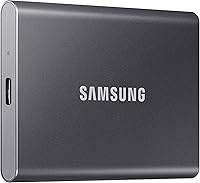
The drives that connect most smoothly are plain USB-C drives with no software requirement, and the Samsung T7 family is the reference point. Both T7 models use USB 3.2 Gen 2 and come with the cables you need for a PC.
The Samsung T7 Shield Portable SSD 1TB adds a rugged shell with an IP65 rating for water and dust resistance. Samsung rates it to survive a 9.8 foot drop, and it reads at up to 1,050 MB/s and writes at up to 1,000 MB/s.
The Samsung T7 Portable SSD 1TB uses a solid aluminum unibody with shock resistance and protection from drops up to 6 feet. It hits the same 1,050/1,000 MB/s read and write speeds and comes with USB-C to C and USB-C to A cables.
The SanDisk Extreme Portable SSD 2TB offers 2TB of space with up to 1,050 MB/s read and 1,000 MB/s write speeds. SanDisk rates it for IP65 water and dust resistance and up to 3-meter drop protection.
These drives work on Windows without extra software. Samsung's Magician tool and SanDisk's Memory Zone app are optional, for monitoring health and managing files.
If you also move files from a phone, our roundup of the best external SSDs for iPhone covers drives that suit both.
How do you keep an external SSD recognized once it's working?
Leave the drive plugged into the same port and eject it properly before you unplug. A drive yanked mid-write can drop its partition table, and the next connection leaves Windows looking for a disk that no longer makes sense.
Use the Safely Remove Hardware icon in the taskbar before pulling the cable. On a laptop, keep the drive out of the bag's crush zone, since a bent connector is a frequent reason a drive stops appearing.
Check the drive's health now and then. Samsung's Magician software monitors drive health and applies firmware updates, and a firmware update can fix detection quirks on some drives.
Our guide to whether external SSDs are good for long-term storage explains what to expect from a drive kept plugged in for years.
When you buy a new drive and want one that's known to behave on Windows, compare the best external SSDs before you order. Most detection problems trace back to the cable or the port, so keep a spare USB-C cable in your bag as a cheap fix for the next time a drive goes missing.
When is the SSD itself the problem?
If the drive stays invisible after cable, port, driver, and Disk Management checks, the enclosure or the drive has likely failed. Try it on a second computer and with a different cable before you decide.
A drive that clicks, gets hot, or shows up with the wrong size in Disk Management is a hardware case. If the files matter, stop testing and contact the maker's support before you try anything else.
A drive that shows up on another PC but not yours points at the first machine's USB port or driver, not the SSD. A drive that's dead on both machines is the one to replace, and the Samsung and SanDisk drives above are the safe picks for a fresh start.
Frequently asked questions
Why won't my PC recognize my external SSD?
The usual causes are a charge-only cable, a USB 2.0 port, a drive with no drive letter, or a port that needs its power settings changed. Work from the cable and port down to Disk Management, and most drives show up.
How do I make an external SSD show up in File Explorer?
Open Disk Management and look for the disk. If it has no drive letter, assign one.
If it shows as unallocated, initialize it, but only if you don't need anything on it.
Does a USB hub stop a PC from seeing an external SSD?
It can. A bus-powered hub may not deliver enough current to a portable SSD.
Plug the drive straight into the PC and try another port before blaming the drive.
Should I format an external SSD to get it recognized?
Only as a last resort. Formatting erases the drive.
Assign a letter or update the driver first, and back up the files before you format anything.
Do external SSDs need drivers on Windows?
Usually not. Windows detects USB mass storage drives on its own.
If a drive stays hidden, update the USB host controller driver and your motherboard's USB support.