How to Use an External Hard Drive on a PC
Plug the drive into a USB port and Windows will usually recognize it within seconds. Open File Explorer, find the drive letter, and drag files onto it or use it as a backup target. Eject it before unplugging so nothing is corrupted.
On this page (9 sections)
- How do you connect an external hard drive to a PC?
- How do you find the drive in Windows?
- How do you copy and move files to the drive?
- How do you set up a backup on the external drive?
- How do you format an external hard drive for Windows?
- Why doesn't the PC show the external hard drive?
- How do you eject and unplug the drive safely?
- Which external hard drive should you start with?
- What should you know before you buy?
Plug the drive into a USB port and Windows will usually recognize it within seconds. Open File Explorer, find the drive letter, and drag files onto it or use it as a backup target.
Eject it before unplugging so nothing is corrupted.
Learning how to use an external hard drive on PC comes down to a short routine: connect, confirm Windows sees it, move or back up files, then remove it safely. The steps below cover each part, plus what to do when the drive doesn't appear.
How do you connect an external hard drive to a PC?
Use a USB 3.0 port and the cable that came with the drive. Plug the drive in, then wait for Windows to detect it and assign a letter.
Most drives need no software for basic file storage.
On a desktop, the ports on the back panel usually connect straight to the motherboard. Front-panel ports work too, but a loose or worn front port can cause dropouts during a long copy.
Keep the drive on a flat, dry surface with room around it. A portable drive is light enough to sit beside a laptop; a desktop drive is heavier and needs its own power adapter.
If Windows shows a notification about the new device, let it finish. The first connection can take a few seconds while Windows installs the basic driver.
How do you find the drive in Windows?
Open File Explorer and look under This PC. The drive appears as a separate letter, often D: or E:, with its own name and a capacity bar.
Double-click it to open the folder.
If you don't see it there, check the notification area and the Devices list. A drive that shows up in Disk Management but not in File Explorer is usually missing a drive letter.
Right-click the Start button and choose Disk Management to see every connected disk. A drive labeled Unallocated has no file system yet and needs formatting before you can store files on it.
Once the drive has a letter, you can pin it to Quick Access so it's one click away. That saves digging through This PC each time you want to copy something.
How do you copy and move files to the drive?
Select the files in File Explorer and drag them onto the drive, or use copy and paste. Dragging within the same disk moves files; dragging to another disk copies them.
Use Ctrl+C and Ctrl+V when you want to be sure the originals stay put.
For a large folder, right-click and choose Copy, then paste into the drive and let the progress bar finish. Don't open the same files from the drive while the copy runs.
Create a simple folder structure first, such as Photos, Documents and Backups. A flat pile of files is hard to search later, and a labeled folder makes a restore much faster.
Should you copy or move your files?
Copy when you want the file in two places, such as photos you keep on the laptop and also on the drive. Move when you're clearing space and the drive will be the only home for those files.
For important data, copy is the safer habit. A move leaves one copy, and a dropped drive or a mistaken delete then takes the only version with it.
How do you set up a backup on the external drive?
Point Windows File History or your chosen backup app at the external drive and run the first backup. File History keeps versioned copies of your personal folders and saves them on the drive.
Connect the drive, open Settings, then Update & Security and Backup. Choose Add a drive, pick the external disk, and turn on Automatically back up my files.
The first run copies a lot, so start it when the PC can stay on.
Keep the drive connected for scheduled backups, or reconnect it regularly if you unplug between runs. A backup that hasn't run in weeks leaves recent work unprotected.
Some drives ship with backup software of their own. The WD My Passport includes device management and backup software with defense against ransomware, plus password protection and hardware encryption.
It suits readers who want a guided backup and a locked drive without hunting for separate apps.
The first backup on a mechanical drive takes time. Leave the PC awake and avoid unplugging the drive until it finishes.
How do you format an external hard drive for Windows?
Right-click the drive in File Explorer and choose Format, or use Disk Management for a drive with no letter. Pick NTFS for Windows-only use or exFAT if you also connect it to a Mac.
Formatting erases everything on the drive.
The quick format option is enough for a drive that's already working. A full format takes longer and checks the surface as it goes, which can be worth it for an older drive.
Set the allocation unit size to Default unless you have a specific reason to change it. Give the drive a clear volume label so you can tell it apart from other disks.
Don't format a drive that already holds files you need. If Windows asks to format a drive you know has data, stop and check the cable and port first; the prompt can appear when the drive isn't reading properly.
Why doesn't the PC show the external hard drive?
Try another USB port and cable first, then check Disk Management. Most detection problems are a loose cable, a failed port or a drive that needs a letter.
Work through those before assuming the drive is dead.
Plug the drive into a rear USB port on a desktop. Unplug other USB devices to rule out a hub that's struggling to power several drives.
If Disk Management shows the drive as unallocated, it needs formatting, and anything on it will be lost. If it doesn't appear at all, listen for the drive spinning and try the cable on another computer.
A portable drive draws power from the USB port, so a weak hub can cause repeated disconnects. A desktop drive with its own adapter avoids that problem.
How much space do you actually need?
Match the capacity to what you store. A 2TB drive holds a large photo library or a long run of backups.
A 4TB drive suits video editors or households backing up several computers.
Portable drives are the easy choice for carrying files between home and work. Desktop drives sit in one place and often cost less per terabyte, which matters when you need a lot of room.
For PC shoppers comparing models, our guide to the best external hard drive for PC covers the portable and desktop options side by side. If you need more room, the best 4TB external hard drive picks are worth a look before you buy.
How do you eject and unplug the drive safely?
Close every file open from the drive, then eject it before pulling the cable. In File Explorer, right-click the drive and choose Eject, or use the Safely Remove Hardware icon in the taskbar.
Wait for the message that it's safe to remove.
Pulling the cable during a write can leave a half-saved file or damage the file system. The eject step tells Windows to finish its writes and release the drive.
If Windows says the drive is in use, close File Explorer windows, backup jobs and any app that opened a file from it. Then try the eject again.
Unplug the cable gently by the connector, not by tugging the wire. Store the drive in a dry place away from magnets and heat when it's not in use.
Which external hard drive should you start with?
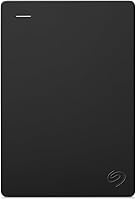
A 2TB portable drive covers most first-time users, and the Seagate Portable 2TB is the pick for most people. It's a USB 3.0 drive that works with Windows or Mac, needs no software to set up, and comes with an 18 inch USB 3.0 cable.
Seagate says the drive offers drag-and-drop backup and automatic recognition when you connect it. Its 2TB capacity holds a large photo and document library with room to spare.
That makes it the simplest drive for someone learning how to use an external hard drive on PC.
The WD Elements Portable 2TB is the budget-minded alternative. It uses USB 3.2 Gen 1 for up to 5Gbps transfers, and its plug-and-play design works on PC and Mac.
Pick it when price per gigabyte matters more than bundled extras.
The WD My Passport 2TB is the choice for security. It adds password protection, hardware encryption and backup software with ransomware defense.
That suits a drive you carry and want locked against anyone who finds it.
What should you know before you buy?
Check the interface and the form factor first. A portable drive runs off the USB port and travels easily.
A desktop drive has its own power supply and is better left in one spot.
If your work runs on photos and video, a larger drive pays off. Photographers can compare options in our guide to the best external hard drive for photographers, and anyone planning a fixed desk setup can browse the best desktop external hard drive picks.
Remember the routine: connect, confirm the letter, copy or back up, then eject. Once you've done it twice, using an external hard drive on PC feels as normal as plugging in a flash drive.
Frequently asked questions
Do I need to install software to use an external hard drive on a PC?
No. Most external drives are plug and play on Windows, so you connect the USB cable and the drive appears in File Explorer.
Backup or encryption tools may come bundled, but the drive works for copying files without them.
Should I format a new external hard drive before using it?
Format it if Windows asks you to or if you plan to use it only on Windows. A quick format clears the drive and sets the file system.
Drives sold ready for Windows often work without formatting, so format only when needed.
How do I safely remove an external hard drive from a PC?
Close any files open from the drive, then use the Safely Remove Hardware icon in the taskbar or right-click the drive in File Explorer and choose Eject. Wait for the message that it is safe to remove before pulling the cable.
Why does my PC not show the external hard drive?
Try another USB port, ideally one on the back of a desktop, and a different cable. Open Disk Management to see whether the drive appears without a letter.
If it shows as unallocated, it may need formatting, which erases what is on it.
Can I use the same external hard drive on a Mac and a PC?
Yes, but the file system matters. ExFAT reads and writes on both Windows and Mac, while NTFS is read only on Mac without extra software.
Reformat only after moving important files off the drive, because formatting erases it.