External Hard Drive Types Explained
The main types of external hard drives are portable hard drives, desktop hard drives and portable solid-state drives. Portable HDDs trade speed for low cost per terabyte, desktop HDDs give the most room for the money, and portable SSDs are the fastest and toughest. Pick the type by how you move the drive and how much speed you need.
On this page (8 sections)
- What are the three main types of external hard drives?
- How do portable hard drives compare for everyday carrying?
- When is a desktop hard drive the right type?
- Why choose a portable SSD over the other types?
- Which type fits backups, media and travel?
- How much storage capacity do you need?
- What features are worth paying for?
- How do you match a drive type to your routine?
The types of external hard drives you'll meet in a store break into three groups: portable hard drives, desktop hard drives and portable solid-state drives. Each type fits a different job.
Portable HDDs keep the cost per terabyte low. Desktop HDDs give you the most room for the money.
Portable SSDs are the fastest and the most resistant to bumps.
The type matters more than the brand name on the case. It sets how fast files move, whether you need a wall outlet and how much space the drive takes in a bag.
This guide walks through each type, the sizes within it and the features worth paying for. It ends with a simple rule so you can match a drive to how you actually use it.
What are the three main types of external hard drives?
The three main types of external hard drives are portable hard drives, desktop hard drives and portable SSDs. The first two use spinning disks.
The third uses flash memory with no moving parts.
A portable HDD puts a 2.5-inch disk mechanism in a small case that runs from the USB port. A desktop HDD uses a larger 3.5-inch mechanism in a bigger cabinet and comes with its own power adapter.
A portable SSD uses flash chips in a compact shell and also draws power from the USB port.
The label on the box usually tells you which one you're holding. "Portable" or "Slim" often means a 2.5-inch HDD.
"Desktop" or "My Book" style names signal a 3.5-inch model with a power brick. "Portable SSD" says flash storage.
That split matters because each type has a different balance of price per terabyte, speed and toughness. A buyer who needs a drive to toss in a laptop bag and a buyer who wants to park 8 TB of photos on a shelf are not shopping for the same thing.
The best 4TB external hard drive picks depend on this same set of choices. Most buyers land on either a portable HDD or a portable SSD at that size.
Rule: name the job first, then pick the type. A drive type that doesn't match your routine will frustrate you no matter how good its specs look.
How do portable hard drives compare for everyday carrying?
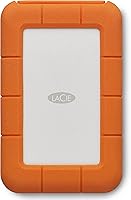
A portable hard drive is the lowest-cost way to carry a lot of data, and it's the type most people picture when they hear "external hard drive". It's a small case around a 2.5-inch spinning disk.
The Seagate Portable 2TB shows the shape of the category. Seagate rates its connection at USB 3.0, and the drive comes with an 18 inch USB cable.
Setup is drag and drop with no software required, and Seagate says it works with Windows or Mac computers.
That simplicity is the point. You plug it in, the computer recognizes it, and you copy files.
There's no separate power supply, so the drive runs from the laptop or desktop it's attached to.
The trade-off is speed. A USB 3.0 hard drive moves data far more slowly than a portable SSD, which matters when you're copying a large video library or a folder of raw photos.
For documents, music and periodic backups, the slower speed rarely gets in the way.
Portability also means handling care. A spinning disk doesn't like being dropped or moved while it's writing.
Set it down before a transfer starts and keep it in a padded pocket when it travels.
Portable HDD sizes and what they suit
Portable HDDs come in sizes from about 1 TB up to 5 TB in the common 2.5-inch format. The 2 TB mark is the sweet spot for most people.
A 1 TB portable drive is enough for a laptop backup plus a photo library. 2 TB gives you room to keep several backups or a mix of media.
4 TB and 5 TB portable HDDs exist but get thicker and heavier, and the price per terabyte stops falling as sharply.
Pick a 2 TB portable HDD if you want one drive for backups and everyday file shuffling. Go bigger only when you can name what will fill the extra space.
Rule: buy the smallest portable HDD that holds your current data plus one year of growth. Extra capacity you never use is money spent on an empty shell.
When is a desktop hard drive the right type?
A desktop hard drive is the right type when capacity matters more than portability. These drives use a 3.5-inch disk in a larger case and ship with an AC power adapter.
The WD My Book 8TB is the classic example. WD builds it as desktop storage with 8 TB of capacity in this configuration, plus password protection and backup software that needs a download and install.
It also has 256-bit AES hardware encryption and a SuperSpeed USB connection rated at 5 Gbps.
The 8 TB capacity is the draw. That's enough room for years of photos, a media library or a full system backup with room to spare.
The price per terabyte on desktop drives is usually the lowest of any external type.
The cost is that the drive stays put. It needs a wall outlet, takes up more desk or shelf space and weighs more than a portable model.
WD lists it as compatible with Windows 10, 8.1 and 7, and macOS 10.13 and later, and it works with WD Backup or Apple Time Machine.
A desktop drive also suits a shared family computer or a small office where several people back up to one place. The software and password protection help when more than one person uses the drive.
Desktop HDD sizes and what they suit
Desktop external HDDs start around 4 TB and climb well past 8 TB. The My Book line itself goes higher than the 8 TB model here.
Choose 4 to 6 TB for a single household's photos, documents and a full computer backup. Choose 8 TB or more when you keep video projects, a large media library or backups from several machines on one drive.
More capacity also means a longer backup window the first time you fill it. Plan the first big copy for a time when you don't need the computer.
Rule: pick a desktop HDD when the drive will live in one spot and you want the most terabytes per dollar. If you need to carry it, this is the wrong type.
Why choose a portable SSD over the other types?
A portable SSD is the type to choose when you need speed, toughness or silent operation in a drive you carry. It uses flash memory and has no spinning parts to protect.
The Samsung T7 Shield Portable SSD 1TB is a clear example. Samsung rates it up to 1,050 MB/s read and 1,000 MB/s write over USB 3.2 Gen 2.
It carries an IP65 rating for water and dust resistance and is tested to survive a 9.8 foot drop under controlled conditions.
That combination is what makes an SSD different. You can edit video directly from the drive, move a large project folder in seconds and not worry much if the drive gets knocked off a desk.
Samsung also includes its Magician software for checking drive health and applying updates.
Compatibility is broad. Samsung lists it for PC, Mac, Android devices and gaming consoles, and it supports iPhone 15 Pro Res 4K at 60fps video.
The drive runs from the USB port with the included cable.
The trade-off is price per terabyte. Flash storage costs more than a spinning disk at the same capacity, so a 1 TB SSD often costs more than a 2 TB portable HDD.
You pay for speed and durability instead of raw room.
Portable SSD sizes and what they suit
Portable SSDs commonly run from 500 GB to 4 TB. The T7 Shield comes in capacities from 1 TB to 4 TB.
A 1 TB SSD suits most people who carry active projects: a video editor, a photographer working from a laptop or a student moving large files between machines. 2 TB and 4 TB models make sense for large video libraries or when the drive doubles as a working disk.
If your main goal is cheap bulk backup that stays on a shelf, an SSD's speed is wasted. That's when a portable or desktop HDD makes more sense.
Rule: buy a portable SSD when you move the drive often or work from the files directly. For cold storage in one place, spend the money on capacity instead.
Which type fits backups, media and travel?
Match the drive type to the job and the answer gets simpler. Most buyers only need one type, but some benefit from two.
| Job | Best type | Why |
|---|---|---|
| Laptop backup you carry | Portable SSD or portable HDD | Runs from USB, fits in a bag |
| Long-term photo or media archive | Desktop HDD | Most capacity per dollar |
| Video editing from the drive | Portable SSD | High transfer speed and no moving parts |
| Shared family or office backup | Desktop HDD | Large capacity in one fixed spot |
| Files moved between home and work | Portable SSD or portable HDD | Small enough to carry daily |
Travel and daily carrying push you toward a portable type. The external hard drive vs flash drive for backup comparison is worth a read if your files are small and you want the lightest option.
Backup strategy matters too. An external drive gives you a second copy that a cloud service or a dead laptop can't take with it.
The external hard drive vs cloud storage guide covers when each one makes more sense.
For a home with several computers, a network drive changes the picture. See the external hard drive vs NAS comparison before you buy a desktop model for shared use.
Rule: pick the type by the job, then the size by your data. Two drives of different types often beat one drive that tries to do everything.
How much storage capacity do you need?
Capacity is the easiest part of the choice once you know the type. Estimate your current data, then add room for growth.
A drive that's full on day one is no help.
Start with what's on your computer now. A typical laptop with a 256 GB or 512 GB drive might hold 150 to 400 GB of used space.
Add your phone photos and any external media you already keep elsewhere.
Then think about the next year. A photographer who shoots weekly and a student writing papers will fill a drive at very different rates.
Add your expected growth before you pick a size.
For a portable HDD, 2 TB covers most households with room to spare. For a desktop HDD, 4 to 8 TB fits a media library or multi-computer backups.
For a portable SSD, 1 TB is the practical starting point for active work.
A drive's stated capacity also reads higher than the usable space. The operating system and formatting take a small slice, so plan around that gap.
Rule: choose a size you can fill in about a year. That pace keeps the drive useful without leaving most of it empty.
What features are worth paying for?
A few features change how a drive works day to day. Prioritize connection speed, then protection, then software.
Everything else is optional.
Connection type sets the ceiling on speed. USB 3.0 is fine for a portable HDD.
USB 3.2 Gen 2 is what lets a portable SSD reach its rated 1,050 MB/s. Plugging a fast SSD into an older USB 2.0 port will slow it down.
Protection matters if the drive travels. An IP65 rating and drop testing on the T7 Shield tell you it can handle a rainy commute or a fall.
A desktop drive in one spot needs less of this.
Software is a nice extra. WD includes backup software and hardware encryption with the My Book.
Samsung includes Magician for health monitoring. These help but shouldn't drive the type choice.
Power is the feature people forget. A desktop drive needs an outlet; a portable drive doesn't.
If you work from a laptop on the couch or in a café, that difference decides the type for you.
Rule: pay for the connection and protection you'll use, not features you'll ignore. A faster port or a tougher shell is worth more than a bundle of software you never open.
How do you match a drive type to your routine?
The match comes down to three questions. How often will you carry it, how much speed do you need and how much room do you want?
Answer those and the type picks itself.
If you carry the drive most days and open large files from it, a portable SSD is the pick. The Samsung T7 Shield fits that routine with its rated speed and rugged shell.
If you want one affordable drive for backups and general file storage that lives in a bag or on a desk, a portable HDD works well. The Seagate Portable 2TB covers that ground with simple plug and play setup.
If the drive will sit in one place and hold a large library, a desktop HDD gives you the most room. The WD My Book 8TB suits that job with its big capacity and backup software.
Some people buy two: a portable SSD for active projects and a desktop HDD for the archive. That split keeps the fast drive from filling up and puts the bulk data on cheap storage.
Before you buy, check the port on your computer. A drive that's faster than your port can't show its speed.
Also check whether the case includes the cable you need, since portable SSDs and HDDs differ there.
Rule: pick the drive type for how you move data, then the size for how much you keep. The types of external hard drives differ mostly in that trade between speed, capacity and toughness, so choose the balance you'll actually use.
Buy the portable SSD if speed and travel matter most. Buy the portable HDD for affordable everyday storage.
Buy the desktop HDD when capacity wins and the drive stays home.
Frequently asked questions
Is an SSD or an HDD better for an external drive?
A portable SSD is the better pick when speed and portability matter, since it has no moving parts and reaches much higher transfer speeds. An HDD is better when you want the most storage for your money and the drive will mostly sit in one place.
Why do desktop hard drives need a power adapter?
Desktop models use a larger 3.5-inch disk mechanism that draws more power than a USB port reliably supplies. They ship with an AC adapter to run the drive, so you need a free wall outlet as well as a USB port.
How much faster is a portable SSD than a portable hard drive?
The Samsung T7 Shield is rated up to 1,050 MB/s read and 1,000 MB/s write over USB 3.2 Gen 2. That is many times the throughput of a typical USB 3.0 portable HDD, though real speed also depends on your computer and the files you move.
Can I use a desktop external hard drive with a laptop?
Yes, a desktop drive connects to a laptop through its USB cable and needs a nearby wall outlet for its power adapter. The extra size and weight make it a poor fit for carrying between places, but it works well as a drive that stays on a desk.
What should I check before buying an external drive?
Check the drive type and size, the connection (USB 3.0 or USB 3.2 Gen 2), whether it needs its own power supply, and its stated capacity. Also think about how you will carry it, since a large desktop model is not built to travel.