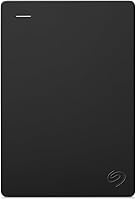
How to Password Protect an External Hard Drive
Yes, you can password protect an external hard drive with built-in encryption or software made for the drive. Choose a method that encrypts the files, save the recovery key somewhere separate, and keep another backup.
On this page (6 sections)
Yes, you can password protect an external hard drive using your computer's encryption tools or software made for the drive. Choose a method that encrypts the files, save its recovery key somewhere separate, and keep another backup in case you lose access.
A password prompt by itself doesn't always mean the files are encrypted. Encryption helps protect stored data if someone connects or removes the drive.
How do you password protect an external hard drive?
Use a drive's password protection or your computer's encryption tool, and follow the instructions for your device. The exact steps depend on the drive, its software, and whether you use Windows or Mac.
Before you begin, check whether setup will erase or reformat the drive. Copy important files to a separate location first, and don't disconnect the drive while encryption or setup is running.
Make a strong password you can remember, then save any recovery key in a secure place that isn't on the drive. If the drive holds your only copy of important files, back up your computer to an external drive before changing its settings.
Can you password protect an external drive without extra software?
Sometimes, using encryption built into your computer. Windows and macOS have their own security tools, but availability and steps can vary by system version, drive format, and account setup.
Check the official Microsoft instructions for BitLocker or Apple's Disk Utility guide before starting. Follow the instructions for your version, and confirm whether the process requires erasing the drive.
Built-in encryption can be a good fit if you mainly use the drive with one type of computer. If you move files between Windows and Mac, check compatibility first so you don't lock yourself out on another device.
What if the drive includes password software?
Use the software made for your drive if its instructions match your computer and needs. Some drives include or support password protection and hardware encryption.
WD My Passport includes software for backup and password protection, plus hardware encryption. Seagate One Touch with Password uses password-activated hardware encryption.
Follow each drive's setup instructions and save recovery information when offered.
Which password protection method should you choose?
Choose the method you'll be able to access on the computers you actually use. A drive-specific tool may suit a single-computer setup, while built-in encryption may be more convenient when your system supports it.
Check these points before choosing:
- Computer compatibility: Confirm that the drive's protection works with your operating system and any other computer you plan to use.
- Recovery: Find out how to recover access if you forget the password or lose the recovery key.
- Existing files: Check whether setup encrypts files in place or requires erasing the drive.
- Backup plan: Keep another copy of important files before changing security settings.
A password on the drive won't replace a backup. If the drive fails, the password can't restore the files, so how long external hard drives last can help you plan for aging storage.
How do you set up protection safely?
Back up first, follow the manufacturer's or operating system's setup instructions, and confirm you can access the drive before storing your only copy of a file.
- Copy the drive's contents to a separate drive or trusted backup location.
- Check the setup instructions for compatibility and any erase or reformat requirements.
- Connect the drive directly and keep it connected through setup.
- Set a strong password and save the recovery key somewhere secure.
- Eject the drive properly, reconnect it, and confirm that you can access it.
- Keep a second copy of important files in a separate place.
If setup asks to format or erase the drive, stop and confirm that your backup is complete before proceeding. For help with formatting choices, see whether an external hard drive needs to be formatted.
What should you do if you forget the password?
Look for the recovery key or recovery steps you saved during setup. The options depend on the encryption method and drive, and some methods can't restore files without the password or key.
Don't keep guessing if the software warns that repeated attempts could lock the drive. Contact the drive maker or consult its official instructions before resetting anything, since resetting may erase the data.
A password manager can help you store the password, while a separate secure location can hold a recovery key. Keep both accessible if you change computers or accounts.
How do you keep protected files backed up?
Keep at least one other copy of important files, and check that you can open it. Password protection helps control access to a drive, but it doesn't prevent hardware failure, accidental deletion, or damage.
Use a separate drive or another backup destination, and update the copy regularly. If you use the same password-protected drive as your only backup, a forgotten password could make those files inaccessible.
For photos and personal files, the best way to back up photos can help you compare storage approaches. For general drive care, browse the drive care and fixes guide.
Which password protection approach is right for you?
Choose the built-in encryption method if it supports your computer and the way you move files. Choose a drive with password protection if its software and instructions suit your setup.
For a portable option, the WD My Passport 4TB and Seagate One Touch 2TB with Password both have password-protection features. The WD My Book 8TB is a desktop option with password protection and hardware encryption.
Before choosing, confirm computer compatibility, save the recovery information, and keep a separate backup. Those steps help make protected files both private and recoverable.
Frequently asked questions
Can you password protect an external hard drive?
Yes. You can encrypt a compatible drive with your computer's built-in tools or use drive software that supports password protection.
Encryption helps keep files unreadable without the password or recovery key.
Check that the method works with your operating system, and store the recovery key somewhere separate from the drive.
Does a password protect files if the drive is lost?
Encryption can help protect files on a lost drive because someone needs the password or recovery key to read them. A password prompt alone may not encrypt the data.
Confirm that the drive or software uses encryption, and keep your recovery information in a secure place that isn't on the drive.
Can I password protect an external hard drive without formatting it?
It depends on the drive and encryption method. Some software may encrypt existing data, while other tools require you to erase or reformat the drive first.
Back up the files before changing security settings, and read the instructions for your exact device and operating system.
What happens if I forget the drive password?
You may need a recovery key to access an encrypted drive, and some systems can't recover the files without the password or key. Save recovery information when you set up protection and keep it separate from the drive.
If you lose both, resetting the drive may erase its contents.