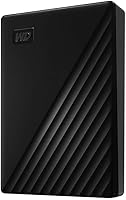
WD Elements vs My Passport: Which Is Better? (October 2026)
Choose WD Elements for simple portable storage, or My Passport for included backup software, password protection and hardware encryption. Both versions offer 5TB of capacity.
On this page (11 sections)
- WD Elements vs My Passport: which drive should you choose?
- What do WD Elements and My Passport have in common?
- What does WD Elements offer for everyday storage?
- What does WD My Passport add?
- How should you set up either WD drive?
- Will either drive work with a USB-C computer or Mac?
- How do you use a portable drive for backups?
- What mistakes should you avoid?
- Is the included software worth choosing My Passport?
- Should you consider the Seagate Portable 5TB?
- WD Elements vs My Passport: what is the final decision?
For WD Elements vs My Passport, choose Elements for simple file storage and My Passport for included backup software and password protection. Both are portable 5TB hard drives, so the decision comes down to which features you will use and how much setup you want.
The WD Elements Portable 5TB comes with a USB-A cable and quick install guide. The WD My Passport 5TB adds device management and backup software, password protection and hardware encryption.


WD Elements vs My Passport: which drive should you choose?
Choose WD Elements if you want a straightforward place to store files; choose My Passport if you want backup software and drive security features. Their capacity and portable form are similar, so those extras make the clearest difference.
Elements suits someone who already has a file-copy routine, wants to move large folders between computers, or needs extra space without setting up dedicated backup software. It is also a practical fit for a household computer where a drive will mostly stay plugged in and hold copies of photos, documents or media.
My Passport makes more sense if you want included device management and backup software to help organize backups, or if you want password protection and hardware encryption for files carried outside the home. Those tools add setup choices, so they are most useful when you plan to configure and use them.
Skip Elements if password protection is a requirement for the drive itself. Skip My Passport if you will not use its software or security features and prefer a simpler setup.
For another view of the Elements drive, read our WD Elements Portable hard drive review. If you are comparing another portable brand, see WD My Passport vs Seagate Portable.
What do WD Elements and My Passport have in common?
Both WD drives provide 5TB of portable storage in a 2.5-inch hard drive form. Either can serve as extra space for a compatible desktop, laptop or tablet, subject to its ports and file system.
The Elements version includes a SuperSpeed USB-A cable rated at 5Gbps. My Passport also includes a SuperSpeed USB-A cable rated at 5Gbps, so the bundled connection is similar for a computer with a USB-A port.
Both drives use a portable hard drive design. They suit carrying files and expanding storage, but neither changes the basic need to keep important files backed up and to handle the drive carefully.
What does WD Elements offer for everyday storage?
WD Elements is the simpler choice when your main need is additional storage without specified backup software or password protection. Its plug-and-play expandability can make it a fit for drag-and-drop file storage on a computer.
You might use it to keep a second copy of a photo library, archive completed projects, or move a large folder between a home computer and a laptop. A simple drive can fit those tasks when you already know where files should go and how you will maintain copies.
Elements includes the drive, cable and quick install guide. Connect it to a compatible port, wait for the computer to recognize it, then confirm the drive appears before copying files.
The model is described for PC and Mac. Tablets are also among its compatible device types, but a tablet may require an adapter or file-management support, so check your device’s connection and storage options first.
Elements is a poor fit if you expect the drive itself to secure files with a password or to provide included backup software. Those features are not specified for this model, so choose it for storage rather than those added tools.
What does WD My Passport add?
WD My Passport adds included device management and backup software, password protection and hardware encryption. It suits people who want those features available on a portable drive and are willing to configure the software and security settings.
The included software is described as providing backup support with defense against ransomware. That makes it a useful option to consider for recurring copies of important folders, but you still need to choose what gets backed up and check that your files are present.
Password protection and hardware encryption can help secure files stored on the drive. Set up the protection before carrying sensitive files, and keep the password somewhere safe.
Understand how you will regain access if you forget it.
My Passport supports PC and Linux, and Mac use with reformatting. If you use a Mac, plan the format before loading files because reformatting can erase data already on the drive.
Skip My Passport if you do not need its included tools and would rather connect a drive and manage files yourself. Extra features help only when you set them up and make them part of your routine.
How should you set up either WD drive?
Start by checking your computer’s ports and operating system, then connect the drive and confirm it appears before copying files. Decide on file organization and backup habits before filling the available space.
- Check whether your computer has a USB-A port. If it has only USB-C, you may need a suitable adapter.
- Connect the included cable directly to the computer when possible, then wait for the drive to appear.
- Confirm the drive name and available capacity in the operating system.
- Create a few clear folders, such as Photos, Documents and Archive, before copying large amounts of data.
- Open several copied files to confirm the transfer worked.
For My Passport, decide whether to use the included device management and backup software, and configure password protection if you want it. For Elements, create a manual copy routine or use backup tools already available on your computer.
A drive that appears in the file manager is ready for ordinary file access, but format compatibility matters if you plan to switch it between systems. Read whether an external hard drive needs formatting before changing a drive’s format.
Will either drive work with a USB-C computer or Mac?
Both include USB-A cables, so a computer with only USB-C ports may need an adapter. Check the port and operating system before setup, especially if you plan to move one drive among several computers.
Elements is described for PC and Mac. My Passport supports Mac with reformatting, and that step can erase existing files, so set the format before you load data.
If one drive will move between different computers, decide which systems need to read and write files. Check each system’s format support and avoid reformatting a full drive just to solve a compatibility issue without first making a separate copy.
How do you use a portable drive for backups?
Use the drive as one part of a repeatable backup routine, and check that important files can be opened from the backup. My Passport’s included software can help organize that work, while Elements can hold copies you manage yourself.
Choose the folders you want to protect and decide how often they change. A photo library that grows each week needs more frequent copies than a folder of finished documents.
After a backup, browse to a few copied files and open them. This small check can catch a missed folder or an incomplete copy before you need the files.
Keep a second copy of irreplaceable files when practical. A single external drive can be lost, damaged or fail, so it should not be the only home for files you cannot replace.
For step-by-step computer backup help, follow our guide to backing up Windows 11 to an external drive. If you are planning a longer-term backup routine, compare options in our guide to external hard drives for long-term backup.
What mistakes should you avoid?
The biggest mistakes are buying for features you will not use, reformatting before backing up, and assuming one drive is a complete backup plan. A little planning keeps setup simple and reduces the chance of losing access to files.
- Choosing by capacity alone: Both examples here have 5TB, so compare software and security needs instead of treating capacity as the deciding factor.
- Expecting Elements to include security tools: Password protection and backup software are not specified for Elements. Choose My Passport if those included features matter.
- Formatting after filling the drive: Reformatting can erase files. Decide on compatibility first and keep another copy before making format changes.
- Forgetting the password: If you set up My Passport protection, store the password in a secure place you can access later.
- Copying without checking: Confirm that a sample of files opens from the destination drive after each large transfer.
- Unplugging during activity: Wait for transfers to finish and safely eject the drive through your computer before disconnecting it.
- Treating the drive as the only copy: Keep important files in more than one place when possible, such as another drive or a cloud backup.
Is the included software worth choosing My Passport?
My Passport’s software is worth considering if you want help managing recurring backups and will take time to configure it. If you only need a destination for occasional manual copies, Elements is likely the more direct fit.
Software can make a routine easier to repeat, but it does not choose the right folders or confirm that every file is useful to you. Review the backup settings, confirm which folders are included, and periodically check the saved copies.
The security tools also have value when you carry private files. Set them up before storing sensitive material, and keep the password safe.
If you do not plan to use either the software or protection, paying attention to those features will not improve your day-to-day storage.
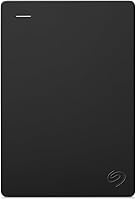
Should you consider the Seagate Portable 5TB?
Consider the Seagate Portable 5TB if you want a third portable option with 5TB capacity and automatic recognition on a computer. Its setup and compatibility details differ, so check that they suit your computer or console.
Seagate describes the drive for Windows or Mac computers and includes an 18-inch USB 3.0 cable. Its compatible console models include PlayStation 4, Xbox 360, Xbox One, Xbox Series S and Xbox Series X.
WD Elements vs My Passport: what is the final decision?
Pick WD Elements for straightforward storage and manual file management; pick WD My Passport for included backup software, password protection and hardware encryption. Both offer 5TB in a portable form, so choose according to the routine you will actually maintain.
Elements is the clearer fit when you want a simple destination for files and already know how you will back them up. My Passport is the better match when you will configure its software and security tools, especially for portable backups that include private files.
Before buying, check your ports, operating system and format plan. If you are still unsure whether 5TB fits your needs, use our external hard drive size guide to estimate the space your files and backup copies require.
Frequently asked questions
What is the main difference between WD Elements and My Passport?
WD Elements focuses on plug-and-play storage, while My Passport adds device management and backup software, password protection and hardware encryption. Both are portable 5TB drives, so choose by whether you want those extra tools and security features as part of your routine.
Are WD Elements and My Passport both 5TB?
Yes. These versions of WD Elements and My Passport each have 5TB of digital storage capacity.
The space available for files can vary with formatting and use, so check the capacity shown by your computer after setup.
Can you use WD My Passport with a Mac?
My Passport supports Mac with reformatting. Reformatting can erase files, so back up anything already on the drive before changing its format and follow current instructions for your computer and drive.
Does WD Elements include password protection?
The features described for WD Elements focus on plug-and-play expandability and USB connectivity; password protection isn't specified for this model. My Passport includes password protection and hardware encryption, which may suit you if securing files on the drive is a priority.
Which WD drive is better for backups?
My Passport has the stronger included backup feature set because it comes with device management and backup software with defense against ransomware. Elements can store backup files, but its described features focus on storage and plug-and-play use rather than included backup software.