WD Elements Portable Hard Drive Review: Worth It? (October 2026)
This WD Elements review points to the 2TB portable drive for straightforward file storage and backup copies. Choose it for simple USB storage; pick another option if you need password protection or a Windows-ready format for Mac use.
On this page (11 sections)
- Is the WD Elements Portable 2TB a good choice?
- What does the WD Elements Portable offer?
- How do you set up WD Elements?
- How does WD Elements compare with other 2TB drives?
- What are the WD Elements trade-offs?
- Will WD Elements work with Windows and Mac?
- Can you use WD Elements for a Windows backup?
- How should you care for and use the drive?
- How do you choose between WD Elements and My Passport?
- Should you buy the WD Elements Portable 2TB?
- Related reading
The WD Elements review answer is straightforward: the Portable 2TB is for adding storage or keeping a separate copy of everyday files through a USB connection. It suits a laptop, desktop or compatible gaming console when simple capacity matters more than password protection or solid-state storage.
The main decision is whether its basic feature set fits the way you store files. Choose it for a no-frills portable hard drive, consider My Passport for built-in security features, or look at an SSD if solid-state storage is your priority.
Is the WD Elements Portable 2TB a good choice?
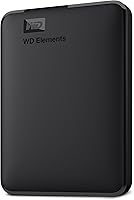
The WD Elements Portable 2TB is a sensible choice for storing photos, videos, music and documents outside your computer. Western Digital describes the range as portable and plug-and-play, with this model offering 2TB of space and USB 3.2 Gen 1 connectivity.
WD Elements Portable 2TB: Best for everyday file storage

- 2TB capacity
- USB 3.2 Gen 1, up to 5Gbps
- Plug-and-play expandability
- Compatible with desktop computers, laptops and gaming consoles
A straightforward portable drive for adding storage or keeping a separate copy of files. Its plug-and-play setup and USB connection keep the process simple.
Pros
- 2TB storage
- USB 3.2 Gen 1 connection
- Plug-and-play expandability
- Compatible with desktop computers, laptops and gaming consoles
Cons
- Mechanical hard drive rather than an SSD
- Reformatting may be needed for some Mac workflows
This drive suits a home backup copy, a library of files you don't need on your computer every day, or extra storage you can move between compatible devices. Its mechanical drive design makes careful handling a good habit, especially during file transfers.
Skip it if your priority is a drive built around password protection or hardware encryption. WD My Passport adds both, while the Elements model keeps its focus on simple storage.
Who should choose WD Elements for everyday storage?
Choose WD Elements if you want a portable drive for ordinary files and prefer a simple connection over added software features. Its listed compatible devices include desktop computers, laptops and gaming consoles, so it can serve several storage roles.
It is also a reasonable fit for a person who wants one place to collect older photos or videos before organizing them elsewhere. If you expect to move the drive often, keep it in a protected place and disconnect it before carrying it.
What does the WD Elements Portable offer?
The WD Elements Portable combines 2TB capacity, USB connectivity and plug-and-play expandability. The package includes a USB 3.0 cable and a quick install guide.
| Detail | WD Elements Portable 2TB |
|---|---|
| Storage capacity | 2TB |
| Drive type | Mechanical hard drive |
| Connection | USB 3.2 Gen 1 |
| Stated data rate | Up to 5Gbps |
| Compatible devices | Desktop, laptop, gaming console |
| Included items | Portable hard drive, USB 3.0 cable, quick install guide |
The 5Gbps figure is the connection's rated data rate, not a guarantee that every copy will finish at that speed. Your computer, its port, file sizes and the amount of data being moved all affect transfer time.
Capacity also needs context. A drive labeled 2TB won't provide exactly 2TB of free space for files after formatting and system use.
Estimate the size of your photo, video and document collections before you buy, using our external hard drive size guide.
How do you set up WD Elements?
To set up WD Elements, connect its USB cable to the drive and a compatible computer, then wait for the computer to recognize it. Before copying files, confirm the drive appears in your file manager and check that its format suits your intended use.
Start with a small group of files so you can learn where the drive appears and how your computer handles it. Create folders with clear names, such as Photos, Documents and Archive, before moving a large collection.
If the drive already contains files, copy anything important elsewhere before changing its format. Formatting can erase stored data, and a drive formatted for one workflow may need a different format for another.
Our guide explains whether an external hard drive needs formatting.
For routine backups, decide which folders matter and make a schedule you can follow. A backup that is never refreshed can miss newer files, so set a reminder or use your computer's backup tools.
How does WD Elements compare with other 2TB drives?
The right alternative depends on whether you value simple recognition, Windows formatting or file security. All four choices here have 2TB capacity and use mechanical storage.
| Product | Best for | Capacity | Connection | Type | Our score |
|---|---|---|---|---|---|
| WD Elements Portable 2TB | everyday file storage | 2TB | USB 3.2 Gen 1, up to 5Gbps | Mechanical hard drive | 8.7 |
| Seagate Portable 2TB | quick file transfers | 2TB | USB 3.0 | 8.8 | |
| Toshiba Canvio Basics 2TB | Windows-ready storage | 2TB | USB 3.0 and USB 2.0 | 7.7 | |
| WD My Passport 2TB | password security | 2TB | 8.0 |
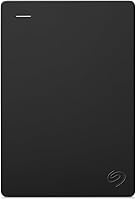
The Seagate Portable 2TB is a close alternative for basic file moves. Seagate describes automatic recognition with Windows or Mac computers and drag-and-drop use; it includes an 18 in USB 3.0 cable.
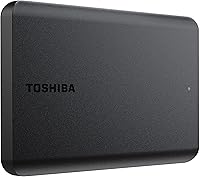
WD Elements is the fit for a simple portable drive with USB 3.2 Gen 1 connectivity and plug-and-play expandability. Toshiba Canvio Basics suits Windows users who want a drive already formatted as NTFS, plus a matte, smudge-resistant finish and no external AC power cord.
Canvio Basics requires reformatting for Mac computers, so factor that in if you switch between operating systems. WD My Passport is the option in this group with specified password protection and hardware encryption.
Its backup and device management software requires download and installation.
What are the WD Elements trade-offs?
The main trade-off is straightforward storage without specified password protection or hardware encryption. If the drive will contain private files and you want those features, compare My Passport before deciding.
Another trade-off is the mechanical drive format. It provides storage for files, but buyers who want solid-state storage should compare SSDs and decide whether that type better suits frequent transfers.
Our guide to portable external SSDs covers that category.
A portable drive can also become a single point of failure if it holds the only copy of important files. Treat it as one part of a backup plan, not the only place your family photos, work files or records exist.
Will WD Elements work with Windows and Mac?
WD Elements connects through USB and is marketed for Windows, while Western Digital describes compatibility with USB 2.0 and USB 3.0 devices. For Mac use, check the format first and reformat only if your workflow requires it.
A connector fitting your computer doesn't guarantee that files are ready to use. The computer must also be able to read the drive's format, and changing that format can erase data already stored on it.
Toshiba Canvio Basics makes the distinction clear: it comes preformatted NTFS for Windows and requires reformatting for Mac computers. That may make it more convenient for a Windows-only setup, but less direct for someone who regularly moves the same drive between Windows and Mac.
Can you use WD Elements for a Windows backup?
Yes. WD Elements can store a separate copy of Windows files, photos and other data, but you need to choose what to copy and keep the backup current.
After copying files, open a few from the external drive to confirm you can access them. For a full Windows 11 backup routine, follow our guide to backing up Windows 11 to an external drive.
Keep a second copy of important files on another device or service. If your computer and its only backup drive are stored together, one accident could affect both.
How should you care for and use the drive?
Keep the drive still while it is moving files, and avoid pulling the cable during a transfer. When you're done, use your computer's safe-eject option before unplugging the USB cable so the computer can finish writing data.
Store the drive somewhere dry and away from heat, and avoid placing heavy items on it. If you carry it in a bag, give it a protected spot where it won't be knocked around by other items.
A common mistake is unplugging the drive as soon as a copy window disappears. Wait until transfers finish and eject it through the computer before disconnecting it.
Our guide covers how to safely eject an external hard drive.
How do you choose between WD Elements and My Passport?
Choose WD Elements for basic storage and My Passport if you want password protection, hardware encryption or the included backup software. Both options have 2TB capacity in this comparison.
My Passport's security tools make it more suitable when you want an added layer for files stored on a portable drive. The software requires download and installation, so it brings extra setup.
Those features may not be useful to you if you only need a place to copy files.
Read our WD Elements vs My Passport comparison for a closer look at the two product lines. Decide based on the files you plan to store and whether you need protection features beyond a physical backup.
Should you buy the WD Elements Portable 2TB?
Buy the WD Elements Portable 2TB if you want simple 2TB storage for everyday files and backup copies. It is a clear fit when plug-and-play use matters more than added security software or solid-state storage.
Choose Seagate if its stated automatic recognition and drag-and-drop setup suit your computer routine. Choose Toshiba for Windows-ready NTFS formatting and a matte finish, or WD My Passport for password protection and hardware encryption.
If solid-state storage is your priority, compare portable SSDs before choosing.
For important files, make more than one copy and confirm that you can open files from each backup. This WD Elements review comes down to a simple rule: buy it for uncomplicated portable storage, and choose another drive when your workflow calls for added security, a specific format or solid-state storage.
Related reading
- WD Elements vs My Passport
- Best external hard drives for a Windows PC
- How to back up Windows 11 to an external drive
- What size external hard drive do I need?
Frequently asked questions
Is the WD Elements Portable hard drive good for backup?
Yes. WD Elements can hold a separate copy of photos, videos, documents or other files.
Choose which folders matter and copy them to the drive.
Open a few files to confirm they transferred, and keep another copy somewhere else for important data since one external drive can be lost or damaged.
Does the WD Elements Portable work with a Mac?
It connects through USB, but the format also needs to suit your Mac workflow. Check the drive's format before saving files, and reformat it if needed.
Reformatting erases existing data, so copy anything you want to keep before changing the format.
Is WD Elements an SSD?
No. The WD Elements Portable 2TB is a mechanical hard drive.
If you want solid-state storage for frequent transfers or a compact carry option, compare portable SSDs.
SSDs use a different storage type, so weigh that preference against your capacity needs.
What is the difference between WD Elements and WD My Passport?
Both are portable WD hard drives with 2TB capacity in this comparison. My Passport adds password protection, hardware encryption and backup software, while Elements focuses on straightforward storage.
Choose My Passport when those security tools matter; otherwise, Elements keeps the feature set simpler.